

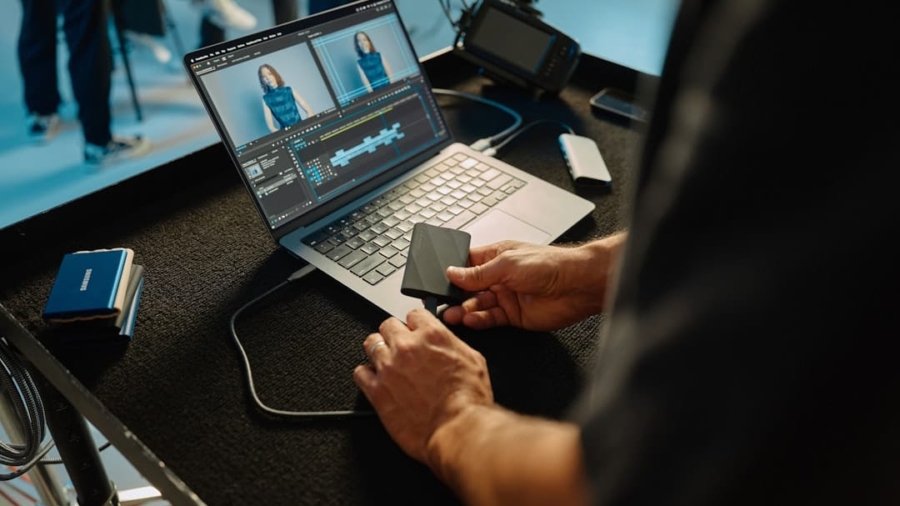
Working across multiple devices for creative tasks can feel like herding cats if you’re not careful. But get it right, and it’s a superpower. The core idea is simple: make sure your work is accessible, consistent, and moves smoothly between your phone, tablet, and desktop, so you can pick up where you left off, no matter where you are or what device you’re holding. It’s about reducing friction and keeping your creative flow going.
Any multi-device workflow starts with how you handle your files. If your files aren’t where you need them, when you need them, the whole system crumbles.
Cloud Storage as Your Central Hub
This isn’t groundbreaking news, but it’s the absolute cornerstone. Think of your cloud storage (Dropbox, Google Drive, OneDrive, iCloud Drive, etc.) as your main office. Every single creative asset, every project file, every piece of reference material lives here.
- Offline Access Consideration: While cloud is king, remember to enable offline access for critical files on your mobile devices or laptop. You never know when you’ll lose signal or need to work on a flight. Prioritize your active projects for offline sync.
- Version Control Best Practices: Most cloud services offer some form of version history. Learn how to use it! It’s a lifesaver when you accidentally delete something crucial or want to revert to an earlier iteration without painstakingly saving multiple files with “v2,” “v3,” “final,” “final_final” in their names.
- Organized Folder Structures: A consistent, logical folder structure is paramount. Don’t just dump everything into one folder. Categorize projects by client, date, type of work, or whatever makes sense for your workflow. Consistency here means less time searching and more time creating.
Naming Conventions for Sanity
Messy file names are the bane of multi-device work. When you’re quickly scanning files on a small screen or trying to sync up, a clear naming convention saves endless headaches.
- Project-Specific Prefixes: Start with the project name or client code. E.g.,
CLIENT_PROJECT_Task_v1.psd. - Date Stamping: For daily iterations or time-sensitive projects, adding a date (YYYYMMDD) can be incredibly helpful. E.g.,
PROJECT_YYMMDD_ConceptDraft.ai. - Meaningful Suffixes: Use suffixes to indicate status (draft, review, final) or content (web, print, mobile). E.g.,
REPORT_FINAL_WEB.pdf.
In the pursuit of enhancing productivity across various devices, it’s essential to consider tools that can help streamline workflows for creative tasks. A related article that delves into this topic is titled “Top 10 Best Scheduling Software for 2023: Streamline Your Schedule Effortlessly.” This resource provides valuable insights into scheduling tools that can optimize your time management and improve collaboration among team members, ultimately supporting a more efficient multi-device workflow. You can read the article here: Top 10 Best Scheduling Software for 2023.
Key Takeaways
- Clear communication is essential for effective teamwork
- Active listening is crucial for understanding team members’ perspectives
- Setting clear goals and expectations helps to keep the team focused
- Regular feedback and open communication can help address any issues early on
- Celebrating achievements and milestones can boost team morale and motivation
Device-Specific Optimization: Playing to Strengths
Each device has its role. Understanding and leveraging those strengths prevents frustration and boosts efficiency. Don’t try to force a desktop-level task onto a phone, and don’t ignore the instant-access power of your tablet.
The Desktop Workhorse: Power and Precision
Your desktop or powerful laptop is where the heavy lifting happens. This is for detailed editing, complex compositions, and resource-intensive rendering.
- Main Creative Suite: This is where your full-fledged applications (Adobe Creative Cloud, Blender, DaVinci Resolve, Logic Pro X, etc.) live. Configure them for performance.
- External Monitors and Peripherals: Maximize your screen real estate. Use a proper keyboard, mouse/tablet, and calibrated monitor for accuracy. This isn’t just comfort; it’s about reducing errors and improving output quality.
- Local Project Copies (with Cloud Sync): For intense work, it’s often faster to work on a local copy of a file. Just ensure that when you finish a session, you sync those changes back to the cloud. Many creative apps have built-in cloud sync or integration.
The Tablet: The Flexible Bridge
Tablets are no longer just consumption devices. They’re fantastic for sketching, ideation, light editing, and client reviews on the go.
- Companion Apps: Look for mobile versions of your desktop software (e.g., Adobe Fresco, Procreate, Affinity Photo/Designer for iPad, Concepts, Clip Studio Paint). These often integrate well with their desktop counterparts.
- Stylus Input: A stylus (Apple Pencil, S Pen) is transformative for creative work on a tablet. It allows for natural drawing, precise selections, and more intuitive interaction than a finger.
- Review and Annotation: Tablets excel at quick review cycles. Use markup tools to annotate PDFs, images, or even video frames directly on the device, then share those annotations with your team or client.
- Portable Sketchpad/Notes: Don’t underestimate the tablet’s role as a digital sketchpad for initial ideas or a quick way to jot down notes during a meeting. These can then be easily incorporated into larger projects.
The Smartphone: Instant Capture and Communication
Your phone is about immediacy. It’s for capturing inspiration, quick edits, and essential communication.
- Idea Capture: Use your phone camera for reference photos, video clips, or scanning documents. Have a system to quickly move these into your cloud storage for later use.
- Quick Edits and Tweaks: For minor adjustments, cropping, or social media-ready exports, your phone can be surprisingly capable. Many apps offer basic photo and video editing functionalities.
- Client Communication and Feedback: Respond to emails, provide quick feedback via messaging apps, or make urgent adjustments to web content. Keep communication flowing even when you’re away from your main setup.
- Voice Memos and Notes: Ever had a brilliant idea strike while you’re out? Use your phone’s voice recorder or note-taking app to capture it instantly. Ensure these notes sync to your main setup.
Synchronization and Workflow Bridges

The magic of multi-device work truly happens when your devices talk to each other effortlessly.
Application Ecosystems and Cross-Device Apps
The fewer different app ecosystems you use, the smoother things generally are.
Sticking within suites (like Adobe Creative Cloud or Apple’s ecosystem) often provides built-in sync features.
- Universal Clipboard/Handoff: Features like Apple’s Universal Clipboard or Continuity allow you to copy text or images on one device and paste them on another. This is incredibly helpful for moving snippets of code, text, or small images.
- Shared Browser Tabs and Reading Lists: If you find something inspiring on your phone, you might want to open it on your desktop later. Features that sync browser tabs or reading lists are invaluable.
- Cloud-Native Creative Apps: Applications built from the ground up for the cloud (like Figma, Canva, Google Docs/Sheets/Slides) inherently offer excellent multi-device support, as your work primarily lives online.
Automation for Repetitive Tasks
Why do something manually if a machine can do it for you?
Automation is your friend.
- IFTTT or Shortcuts: Tools like IFTTT (If This Then That) or Apple Shortcuts can automate simple tasks, like saving new photos from a specific folder to a cloud service, or triggering a sync.
- Batch Processing Scripts: For larger tasks, learn some basic scripting (e.g., shell scripts, Python). This allows you to apply the same transformations to multiple files, resize images, or convert formats, saving you significant time.
- Templates for Consistency: Don’t reinvent the wheel. Create templates for common document types, project setups, or even file naming conventions.
These reduce setup time and ensure consistency across projects, regardless of the device you start on.
Collaboration and Feedback Loops

Creative work rarely happens in a vacuum. Multi-device workflows extend to how you interact with others.
Centralized Feedback Platforms
Emailing attachments back and forth is inefficient. Use platforms designed for feedback.
- Project Management Tools (with asset integration): Tools like Asana, Trello, ClickUp, or Monday.com aren’t just for tasks; they can often integrate with your cloud storage, allowing you to link directly to files for review.
- Dedicated Review Platforms: For visual work, platforms like Frame.io (for video), InVision (for design prototypes), or even simple PDF annotation tools allow clients or team members to mark up content directly.
- Shared Whiteboards and Brainstorming Tools: When ideating, digital whiteboards (Miro, Mural, FigJam) allow everyone to contribute from their device in real-time, regardless of location.
Communication Tools and Protocols
Clear communication is always key, but even more so when working across devices and locations.
- Instant Messaging for Quick Queries: Slack, Microsoft Teams, or even WhatsApp groups for project-specific communication. These are ideal for quick questions, clarifications, and sharing immediate updates.
- Video Conferencing for Deeper Dives: For detailed discussions, client presentations, or problem-solving, video calls are essential. Ensure your setup on all devices allows for easy joining.
- Establishing “Offline” Hours: Multi-device work can blur the lines between work and personal life. Set expectations with your team and clients about when you’re available for feedback. It’s perfectly fine to shut down or put devices away.
In the realm of optimizing multi-device workflows for creative tasks, understanding the tools available can significantly enhance productivity. A related article that delves into this topic is an insightful piece on the best software for 3D animation, which highlights various applications that can streamline creative processes across different devices. By exploring the features of these tools, creatives can better manage their projects and collaborate effectively. For more information, you can check out the article here: best software for 3D animation.
Personalizing Your Setup and Continuous Improvement
| Metrics | Results |
|---|---|
| Increased Productivity | 20% improvement |
| Time Saved | 30% reduction in task completion time |
| Improved Collaboration | 50% increase in team collaboration |
| Enhanced Creativity | 15% boost in creative output |
There’s no one-size-fits-all solution. Your perfect multi-device workflow will evolve.
Regular Review and Adjustment
Your tools, projects, and even your preferences will change. Periodically review your setup.
- “Digital Audit” Sessions: Every few months, dedicate an hour to review your file structure, app usage, and sync settings. Are there redundant apps? Are files saving where they should?
- Gather Feedback on Your Workflow: Ask yourself (or even colleagues) what’s slowing you down. What’s frustrating? These friction points are opportunities for improvement.
- Experiment with New Tools/Techniques: The creative tech landscape changes rapidly. Don’t be afraid to try new apps or methods, but always evaluate if they truly enhance your workflow or just add complexity.
Ergonomics and Digital Wellness
Working across multiple devices means shifting positions and interacting with different screen sizes. Don’t overlook your physical and mental well-being.
- Vary Your Posture: Don’t sit hunched over a laptop all day if you can help it. Use your tablet with a stand, or stand up while taking calls on your phone.
- Eye Strain Prevention: Take breaks, use blue light filters on screens, and ensure adequate lighting. Each device presents a different visual challenge.
- Mindful Device Switching: Be intentional about why you’re switching devices. Are you really more productive, or just distracted? Sometimes, focusing on one device for a dedicated period is more effective.
Optimizing multi-device workflows for creative tasks is an ongoing process. It’s about building habits, selecting the right tools, and understanding how each piece of your tech arsenal contributes to your overall creative output. By putting in the effort to structure your files, leverage device strengths, and bridge your tools effectively, you’ll spend less time wrestling with tech and more time bringing your ideas to life.
FAQs
What are multi device workflows for creative tasks?
Multi device workflows for creative tasks refer to the process of using multiple devices, such as computers, tablets, and smartphones, to complete creative projects. This can involve transferring files between devices, utilizing different software and apps, and optimizing the workflow for efficiency and productivity.
Why is it important to optimize multi device workflows for creative tasks?
Optimizing multi device workflows for creative tasks is important because it allows for seamless collaboration, increased flexibility, and improved productivity. By streamlining the process of working across multiple devices, creatives can work more efficiently and effectively.
What are some strategies for optimizing multi device workflows for creative tasks?
Some strategies for optimizing multi device workflows for creative tasks include using cloud storage for easy file access, syncing settings and preferences across devices, utilizing cross-platform software and apps, and establishing a consistent file naming and organization system.
What are the benefits of using multi device workflows for creative tasks?
The benefits of using multi device workflows for creative tasks include increased flexibility, improved collaboration, access to a wider range of tools and software, and the ability to work on projects from anywhere.
What are some common challenges when working with multi device workflows for creative tasks?
Common challenges when working with multi device workflows for creative tasks include compatibility issues between devices and software, file management and organization complexities, and the need to maintain consistent creative standards across different devices.
Enjoying our content? Make us a preferred source on Google:
Add us as a Preferred Source on Google