


Moving your essential productivity tools from cloud services to a mini PC at home isn’t just a fun tech project; it’s a smart move for privacy, control, and often, long-term cost savings.
While the cloud offers convenience, self-hosting gives you ownership of your data and the flexibility to customize things exactly how you like.
We’re talking about running tools like file sync, password managers, and note-taking apps on a small, low-power computer that sits quietly in your home office, accessible from all your devices.
Why Self-Host? The Unpacked Benefits
Let’s be real, the main reason most of us consider self-hosting isn’t just because we like tinkering (though that’s a perk!). It usually boils down to a few key areas that modern cloud services sometimes fall short on, especially for personal use.
Data Ownership and Privacy
When your files are on Google Drive or Dropbox, they’re on someone else’s server. While these companies have robust security, you’re still trusting them with your most sensitive information. Self-hosting means your data stays on hardware you own, in your home. This gives you unparalleled control over who can access it, how it’s backed up, and where it physically resides. No terms of service changes suddenly altering how your data is used, no worries about a third-party breach exposing your private notes. It’s yours, and you’re the only one truly in charge.
Cost-Effectiveness Over Time
Initially, there’s an upfront cost for the mini PC and perhaps some storage. However, compare that to monthly or yearly subscriptions for multiple cloud services. Dropbox, Notion, LastPass, Evernote – these all add up. For many users, especially those with growing storage needs, the cost of a mini PC and a few years of electricity can be significantly less than continuous cloud subscriptions. Plus, once you own the hardware, you’re not locked into escalating pricing models.
Customization and Control
Ever wished your note-taking app had a specific feature, or your file sync worked a particular way? With self-hosted tools, you’re often leveraging open-source software, which means a vast community contributes to its development. You can tweak configurations, install plugins, and integrate services in ways that proprietary cloud platforms simply don’t allow. This level of control means your productivity ecosystem can truly reflect your workflow, rather than forcing you to adapt to someone else’s.
Learning and Empowerment
There’s a definite satisfaction in building and maintaining your own server. You’ll pick up valuable skills in Linux administration, networking, and containerization (we’ll get to that). This isn’t just about getting tools to work; it’s about understanding how they work, which is incredibly empowering in a world increasingly reliant on opaque cloud infrastructure. It demystifies the technology and gives you a deeper appreciation for the digital services we all use daily.
If you’re looking to enhance your productivity while self-hosting essential tools on a mini PC, you might find it beneficial to explore the article on the best software for working with piles of numbers. This resource provides insights into various applications that can streamline your data management and analysis tasks, complementing your self-hosting setup. For more information, check out the article here: Best Software for Working with Piles of Numbers.
Key Takeaways
- The training data includes information and events up to October 2023.
- Insights and knowledge are based on a wide range of sources available until the cutoff date.
- No updates or developments occurring after October 2023 are included in the training.
- Users should verify current information from reliable sources for the latest updates.
- The model’s responses reflect the context and knowledge available up to the specified date.
Picking Your Perfect Mini PC

Choosing the right mini PC is the first big step. You want something reliable, energy-efficient, and powerful enough for your needs, without breaking the bank. Think of it as the quiet, unassuming workhorse of your digital life.
Key Hardware Considerations
We’re not building a gaming rig here, so focus on efficiency and stability.
Processor (CPU)
For most productivity tools, you don’t need an i7 or a Ryzen 7. An Intel Celeron, Pentium, or a low-power Core i3/i5 (8th generation or newer for better efficiency) is usually more than enough. ARM-based processors, like those found in Raspberry Pi alternatives (e.g., ODROID, Rock Pi), are also excellent for their incredibly low power consumption, but software compatibility might require a bit more attention. Aim for something with enough grunt to handle simultaneous tasks without bogging down. Two to four cores is a good sweet spot.
RAM (Memory)
This is more crucial than CPU for multiple services running concurrently. Aim for at least 8GB of DDR4 RAM. If you plan on running virtual machines or many Docker containers, 16GB would be a safer bet. RAM is relatively inexpensive, so it’s a good area to not skimp on.
Storage
A fast boot drive is a must. An NVMe SSD (M.2 form factor) of at least 128GB (256GB is better) for the operating system and application files will make everything feel snappy. For actual data storage (your documents, photos, etc.), you have options. Many mini PCs can accommodate a 2.5-inch SATA SSD or even an HDD. For larger storage needs, consider connecting an external USB 3.0/3.1 enclosure with spinning hard drives. Remember, SSDs are faster and more reliable, but HDDs offer more capacity for less money. For a home server, prioritize reliability.
Networking
A gigabit Ethernet port is essential. Wi-Fi is convenient for setup, but for a server that needs to be always-on and reliably accessible, a wired connection is king. If you plan on doing anything with media streaming or large file transfers, multiple Ethernet ports can be a bonus, but not strictly necessary for basic productivity tools.
Power Consumption
This is a big one. One of the main appeals of a mini PC over an old desktop is its low power draw. Look for models advertised with low TDP (Thermal Design Power) CPUs. Many mini PCs consume between 10-30 watts under typical load, which translates to very low electricity bills even when running 24/7.
Recommended Mini PC Options
- Intel NUCs (or similar clones like Beelink, Minisforum): These are popular for a reason. They’re compact, reliable, and come in various configurations. Look for models with Celeron or i3/i5 processors.
- Raspberry Pi (or alternatives): The Pi 4 (4GB or 8GB RAM) is fantastic for extremely low power consumption and silent operation. However, its ARM architecture means some software might require specific builds or have slightly lower performance for very demanding tasks. Alternatives like the ODROID N2+ or Rock Pi 4C offer more power for ARM-based systems.
- Used Thin Clients or Small Form Factor PCs: Sometimes you can find great deals on enterprise-grade thin clients (e.g., HP t630, Dell Wyse) or older SFF desktops that are surprisingly capable and very cheap. They might be a bit larger or older, but can be fantastic value.
Setting Up Your Self-Hosting Foundation
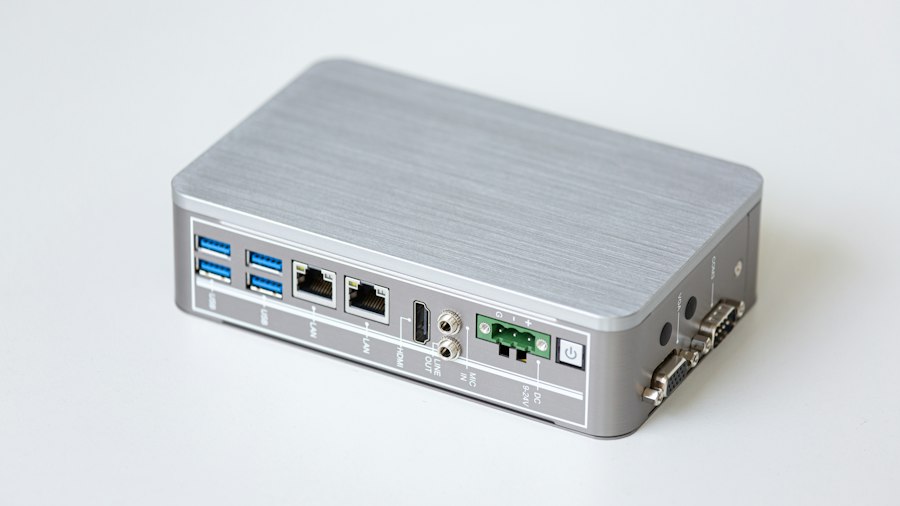
Once you have your mini PC, it’s time to get it ready. This involves choosing an operating system and deciding how you’ll manage your applications.
Operating System Choices
For a server, Linux is the undisputed champion. It’s stable, secure, open-source, and has a vast ecosystem of tools and support.
Ubuntu Server
This is often the go-to for beginners and experienced users alike.
It’s well-documented, has a huge community, and offers long-term support (LTS) versions that are incredibly stable. You install it without a graphical interface, managing it mostly through the command line, which is efficient and uses minimal resources.
Debian
Ubuntu is based on Debian, and Debian itself is renowned for its rock-solid stability. It’s a bit more conservative with software updates, which often translates to fewer surprises.
If ultimate stability is your priority, Debian is an excellent choice.
Alpine Linux (for Docker hosts)
If you’re going all-in on Docker (which we highly recommend), Alpine Linux is an incredibly lightweight distribution. It has a tiny footprint, which means less disk space used and fewer potential security vulnerabilities. It’s more advanced to set up but highly efficient.
The Power of Docker
Docker is a game-changer for self-hosting.
It allows you to package applications and their dependencies into isolated containers. This means you can run multiple services (Nextcloud, Vaultwarden, Jellyfin, etc.) on the same mini PC without them interfering with each other.
Why Docker is Your Friend
- Isolation: Each application runs in its own container, separate from the host OS and other apps. If one crashes, it doesn’t take down the others.
- Portability: Docker containers run the same way everywhere.
You can move your setup to a new mini PC easily.
- Easy Deployment: Docker Compose files let you define your entire application stack in a simple text file, making setup and updates a breeze.
- Resource Efficiency: Containers are much lighter than full virtual machines, using fewer resources.
- Simplified Updates: Update a single container without worrying about library conflicts on your main system.
Getting Started with Docker
After installing your chosen Linux OS, installing Docker is usually a single command:
sudo apt update
sudo apt install docker.io docker-compose
Then, you can start downloading and running pre-built images for your productivity tools. For example, a command like docker run -d -p 80:80 nextcloud/apache would get Nextcloud up and running (though a more robust setup involves volumes and Docker Compose).
Essential Productivity Tools to Self-Host
Now for the fun part: what can you actually put on this thing? We’ll focus on tools that directly replace common cloud services for file syncing, password management, notes, and task management.
File Sync and Sharing: Nextcloud
Replaces: Dropbox, Google Drive, OneDrive
Nextcloud is arguably the flagship self-hosted solution. It’s a full-fledged productivity suite that gives you file syncing, sharing, calendar, contacts, and even optional apps for notes, office document editing, and more.
Key Features
- File Sync: Desktop clients for Windows, macOS, and Linux, plus mobile apps for iOS and Android, keep your files synchronized across all your devices.
- Sharing: Share files and folders with others via public links or specific user accounts.
- Collaborative Editing: Integrate with OnlyOffice or Collabora Online for real-time document editing in your browser.
- Calendar & Contacts: Sync your calendar and contacts with your phone and desktop email client using CalDAV and CardDAV.
- Extensible: A huge app store lets you add features like notes, tasks, photos, and even video calls.
Docker Setup for Nextcloud
Using Docker Compose is the recommended way to set up Nextcloud, often alongside a database (like PostgreSQL or MariaDB) and a reverse proxy. A basic docker-compose.yml might look something like this (simplified):
“`yaml
version: ‘3’
services:
db:
image: mariadb
restart: always
command: –transaction-isolation=READ-COMMITTED –binlog-format=ROW
volumes:
- db:/var/lib/mysql
environment:
MYSQL_ROOT_PASSWORD:
MYSQL_PASSWORD:
MYSQL_DATABASE: nextcloud
MYSQL_USER: nextcloud
app:
image: nextcloud
restart: always
ports:
- 8080:80
volumes:
- nextcloud:/var/www/html
environment:
MYSQL_HOST: db
MYSQL_DATABASE: nextcloud
MYSQL_USER: nextcloud
MYSQL_PASSWORD:
NEXTCLOUD_TRUSTED_DOMAINS: localhost YOUR_DOMAIN.COM
depends_on:
- db
volumes:
db:
nextcloud:
“`
This would get Nextcloud running on port 8080. You’d then access it via http://YOUR_MINI_PC_IP:8080. For external access, you’ll need a reverse proxy and SSL (more on that later).
Password Management: Vaultwarden (Formerly Bitwarden_RS)
Replaces: LastPass, 1Password, Bitwarden (cloud)
Vaultwarden is an unofficial, Rust-based implementation of the Bitwarden API. It provides a fully compatible, lightweight, and incredibly efficient self-hosted Bitwarden server. This means you can use all the official Bitwarden client apps (browser extensions, desktop apps, mobile apps) to connect to your own server.
Why Vaultwarden?
- Security: Your master password and vault are yours alone, stored on your hardware.
- Compatibility: Works seamlessly with all official Bitwarden clients.
- Lightweight: Uses minimal resources compared to the official Bitwarden server (which requires a full .NET Core stack).
- Features: Supports all core Bitwarden features, including organization sharing, TOTP, and more.
Docker Setup for Vaultwarden
Vaultwarden is famously easy to set up with Docker:
“`bash
docker run -d –name vaultwarden -v /data/vaultwarden:/data -p 8000:80 vaultwarden/server:latest
“`
This command runs Vaultwarden, mapping port 8000 on your host to its internal port 80, and stores all its data in /data/vaultwarden on your mini PC. You’d then configure your Bitwarden clients to point to http://YOUR_MINI_PC_IP:8000 (or your domain if using a reverse proxy).
Notes and Knowledge Base: Joplin Server (or plain Markdown Sync via Nextcloud)
Replaces: Evernote, Notion, Simplenote
For note-taking, you have a couple of solid self-hosted options depending on your needs.
Joplin Server
Joplin is a powerful, open-source note-taking and to-do application with markdown support. It offers end-to-end encryption and has clients for all major platforms. While it can sync via Nextcloud, Dropbox, or OneDrive, you can also run a dedicated Joplin Server for direct synchronization.
Key Joplin Features
- Markdown Support: Write notes in clean, readable Markdown.
- Encryption: End-to-end encryption ensures your notes are private.
- Cross-Platform: Desktop apps (Windows, macOS, Linux), mobile apps (iOS, Android), and a terminal app.
- Web Clipper: Save web pages directly to Joplin.
- Version History: Track changes to your notes.
Joplin Server Docker Setup
A basic Docker setup for Joplin Server looks like this:
“`bash
docker run -d \
–name joplin-server \
-p 22300:22300 \
-v /data/joplin-server:/config \
-e APP_PORT=22300 \
-e DB_CLIENT=pg \
-e POSTGRES_DATABASE=joplin \
-e POSTGRES_USER=joplin \
-e POSTGRES_PASSWORD=
-e POSTGRES_HOST=db \
joplin/server:latest
“`
(Note: This assumes you have a PostgreSQL database running, similar to the Nextcloud example, or you can use SQLite for simpler setups.)
Plain Markdown Sync via Nextcloud
If you prefer simplicity and already have Nextcloud, you can simply store your Markdown notes directly in Nextcloud. Apps like Typora, Obsidian, or VS Code can open and edit these files, and Nextcloud will handle the syncing. This doesn’t offer encryption within the note app itself, but your Nextcloud server can be encrypted.
Task Management: WeKan
Replaces: Trello, Asana, Monday.com
WeKan is an open-source collaborative kanban board application. It’s a great choice for personal task management or small team projects.
Key Features
- Kanban Boards: Visualize your tasks with boards, lists, and cards.
- Collaboration: Share boards with others.
- Attachments & Comments: Add files and comments to cards.
- Custom Fields: Tailor cards to your specific needs.
- User Management: Manage users and permissions.
Docker Setup for WeKan
WeKan can be a bit more resource-intensive than Vaultwarden but is still well within a mini PC’s capabilities. It typically requires MongoDB.
“`yaml
version: ‘3.8’
services:
db:
image: mongo:4.4
restart: always
volumes:
- wekan-db:/data/db
command: mongod –logpath /dev/null –bind_ip 0.0.0.0
wekan:
image: wekanteam/wekan:latest
restart: always
environment:
- MONGO_URL=mongodb://db:27017/wekan
- ROOT_URL=http://your_domain_or_ip:8080 # Change this
- MAIL_URL=smtp://user:password@mailserver.com:port/
Add other environment variables as needed for email, etc.
ports:
- 8080:80
depends_on:
- db
volumes:
wekan-db:
“`
This will run WeKan, accessible on port 8080.
If you’re looking to enhance your productivity while self-hosting essential tools on a mini PC, you might find it helpful to explore various software options that can optimize your workflow. For instance, you can check out this article on the best free software for 3D modeling in 2023, which highlights some excellent applications that can be integrated into your setup. By leveraging these tools, you can create a more efficient and effective working environment tailored to your specific needs.
Making Your Services Accessible and Secure
| Tool | Purpose | Recommended Software | Minimum RAM | Storage Required | CPU Requirements | Network Port | Estimated Setup Time |
|---|---|---|---|---|---|---|---|
| File Sharing | Access and sync files across devices | Nextcloud | 2 GB | 10 GB+ | Dual-core 1.5 GHz+ | 443 (HTTPS) | 1-2 hours |
| Note Taking | Organize notes and collaborate | Joplin Server | 1 GB | 2 GB | Dual-core 1.2 GHz+ | 2233 | 30-60 minutes |
| Calendar & Contacts | Manage events and contacts | Radicale | 512 MB | 1 GB | Single-core 1 GHz+ | 5232 | 30 minutes |
| Task Management | Track tasks and projects | Kanboard | 1 GB | 1 GB | Dual-core 1.2 GHz+ | 80 (HTTP) | 45 minutes |
| Communication | Chat and video calls | Mattermost | 4 GB | 10 GB | Quad-core 2 GHz+ | 8065 | 2-3 hours |
| Document Editing | Create and edit documents online | OnlyOffice | 4 GB | 15 GB | Quad-core 2 GHz+ | 443 (HTTPS) | 3-4 hours |
Having services run on your mini PC is great, but you’ll likely want to access them from outside your home network, and you absolutely want to do so securely.
Networking Basics: Ports and Firewalls
Your home router acts as a firewall, blocking incoming connections by default. To access your services from outside, you’ll need to “port forward.” This tells your router to send traffic on a specific external port to a specific internal IP address (your mini PC) and port.
Example: Forward external port 443 (HTTPS) to your mini PC’s internal IP address on port 443.
Important: Port forwarding directly to an application (like Nextcloud on port 8080) without SSL is highly discouraged. Always use a reverse proxy with SSL for external access.
Dynamic DNS (DDNS)
Unless you have a static public IP address from your ISP (uncommon for residential connections), your IP address will change periodically. Dynamic DNS services (like No-IP, Dynu, or some built into your router) keep a domain name (e.g., myhome.ddns.net) updated with your current public IP. This means you can always reach your mini PC via that domain name.
Reverse Proxy and SSL (Certbot/Traefik/Nginx Proxy Manager)
This is the cornerstone of secure and easy external access.
What’s a Reverse Proxy?
Instead of opening multiple ports on your router for each service (e.g., 8080 for Nextcloud, 8000 for Vaultwarden), you open just two: 80 (HTTP) and 443 (HTTPS). All external traffic comes to your reverse proxy, which then intelligently routes it to the correct internal Docker container based on the domain name.
Example:
nextcloud.yourdomain.com-> routes to Nextcloud containervault.yourdomain.com-> routes to Vaultwarden container
Why SSL (HTTPS)?
SSL encrypts all traffic between your device and your mini PC. Without it, anyone snooping on your network could read your passwords, files, and notes. Let’s Encrypt provides free SSL certificates, and they’re easy to integrate with reverse proxies.
Recommended Reverse Proxy Solutions:
- Nginx Proxy Manager (NPM): This is fantastic for beginners. It’s a Docker container with a web-based GUI that makes setting up reverse proxies and Let’s Encrypt SSL certificates incredibly simple.
- Pros: Easy GUI, automates SSL.
- Cons: Can be less flexible for very advanced setups.
- Traefik: A powerful and modern reverse proxy that integrates seamlessly with Docker. It can automatically discover new services and generate SSL certificates.
- Pros: Highly automated, integrates deeply with Docker, very flexible.
- Cons: Steeper learning curve than NPM.
- Nginx (with Certbot): The classic, rock-solid solution. You’d configure Nginx manually and use Certbot to manage your Let’s Encrypt certificates.
- Pros: Extremely powerful, highly customizable, mature.
- Cons: Requires manual configuration, command-line heavy.
Basic Steps with Nginx Proxy Manager (NPM):
- Install NPM: Run its Docker Compose stack.
- Point DNS: Configure your domain’s DNS
Arecords (or CNAME for DDNS) to point to your public IP. - Port Forward: Forward external ports 80 and 443 on your router to the NPM container’s internal IP/ports.
- Create Proxy Host: In the NPM web UI, create a new “Proxy Host” for each service:
- Domain Name:
nextcloud.yourdomain.com - Scheme:
http - Forward Hostname/IP:
nextcloud_container_ip(ornextcloudif using Docker Compose network) - Forward Port:
80(the internal port of your Nextcloud container) - SSL: Request a new Let’s Encrypt certificate.
This setup ensures all your traffic is encrypted and routed correctly, allowing you to access https://nextcloud.yourdomain.com and https://vault.yourdomain.com from anywhere.
If you’re looking to enhance your productivity while self-hosting essential tools on a mini PC, you might find it beneficial to explore related resources that can help streamline your workflow. For instance, discovering the best free software for home remodeling can provide valuable insights into how to effectively manage projects and tasks. You can read more about it in this informative article here, which highlights various applications that can complement your productivity setup.
Maintenance, Backups, and Best Practices
Self-hosting comes with the responsibility of maintaining your setup. This isn’t just about keeping things running; it’s about safeguarding your data.
Regular Updates
Software gets vulnerabilities and bugs fixed through updates. It’s crucial to keep your operating system and Docker containers up to date.
OS Updates
For Debian/Ubuntu:
sudo apt update && sudo apt upgrade -y
sudo apt autoremove -y
Do this regularly, perhaps once a week or bi-weekly. Reboot if the kernel is updated.
Docker Container Updates
You can update individual containers by pulling the latest image and recreating the container:
docker-compose pull (in your docker-compose.yml directory)
docker-compose up -d
This pulls the latest image versions defined in your docker-compose.yml and restarts the services.
Robust Backup Strategy
This is non-negotiable. If your mini PC dies, you don’t want to lose everything.
What to Back Up
- Docker Volumes: These are where your application data lives (e.g., Nextcloud files, Vaultwarden database, Joplin notes).
- Docker Compose Files: So you can easily restore your setup.
- Important Configuration Files: Any custom configs outside of Docker volumes.
Backup Destinations
- External USB Drive: Simple, effective for local backups.
- Network Attached Storage (NAS): If you already have one, use it.
- Cloud Storage (Encrypted): Yes, you’re self-hosting to avoid the cloud, but an encrypted offsite backup of your most critical data (your Vaultwarden vault, important documents) is a smart disaster recovery step. Tools like Rclone can sync encrypted backups to various cloud providers.
Backup Tools
rsync: A powerful command-line utility for incremental backups.borgbackup: Excellent for deduplicated, encrypted, and compressed backups.duplicati: A free, open-source backup client that supports various backends and encryption.
Example for a simple rsync backup of a Docker volume:
rsync -avz /data/nextcloud /mnt/external_backup_drive/nextcloud_backup_$(date +%Y%m%d)
Automate these with cron jobs. Test your backups periodically!
Monitoring Your Server
Keep an eye on resource usage and service health.
htop: A more user-friendlytopcommand for seeing CPU, RAM, and process usage.df -h: Check disk space.docker stats: See resource usage for individual Docker containers.- UptimeRobot or Healthchecks.io: External services that can ping your server’s public IP/domain and alert you if it goes down.
Security Best Practices
- Strong Passwords: For everything – your OS user, Docker environment variables, web interfaces.
- SSH Key Authentication: Disable password-based SSH login and use SSH keys.
- Fail2Ban: Install
fail2banto automatically ban IP addresses that make too many failed login attempts (e.g., to SSH or your Nginx Proxy Manager). - Firewall (
ufw): Configure your OS firewall to only allow necessary incoming connections (e.g., SSH, HTTP, HTTPS). - Regular Software Updates: As mentioned, this is paramount.
- Least Privilege: Run services with the minimum necessary permissions. Docker helps with this by isolating apps.
Self-hosting can seem daunting at first, but by taking it one step at a time, leveraging tools like Docker and reverse proxies, and committing to good maintenance practices, you can build a robust, private, and empowering personal cloud that serves your productivity needs perfectly.
FAQs
What is a mini PC and why is it suitable for self-hosting productivity tools?
A mini PC is a compact computer that offers similar functionality to a traditional desktop PC but in a smaller form factor. It is suitable for self-hosting productivity tools because it typically consumes less power, takes up less space, and can be configured to run various applications efficiently, making it ideal for home or small office environments.
What essential productivity tools can be self-hosted on a mini PC?
Essential productivity tools that can be self-hosted on a mini PC include project management software (like Nextcloud or Kanban boards), note-taking applications (such as Joplin), communication platforms (like Mattermost or Rocket.Chat), and file storage solutions (like ownCloud). These tools help streamline workflows and enhance collaboration.
What are the basic requirements for setting up a mini PC for self-hosting?
To set up a mini PC for self-hosting, you will need a mini PC with adequate processing power and RAM (at least 4GB is recommended), a stable internet connection, an operating system (like Ubuntu or Windows), and sufficient storage space for the applications and data you plan to host. Additionally, familiarity with networking and server management can be beneficial.
How can I ensure the security of my self-hosted productivity tools?
To ensure the security of your self-hosted productivity tools, implement strong passwords, enable two-factor authentication where possible, keep your software updated to patch vulnerabilities, use a firewall to protect your network, and consider setting up a VPN for secure remote access. Regular backups of your data are also crucial for recovery in case of data loss.
Can I access my self-hosted tools remotely, and if so, how?
Yes, you can access your self-hosted tools remotely by configuring your mini PC to allow remote connections. This typically involves setting up dynamic DNS if you have a changing IP address, configuring port forwarding on your router, and using secure protocols like HTTPS or SSH. Additionally, using a VPN can provide a secure connection to your home network from anywhere.
Enjoying our content? Make us a preferred source on Google:
Add us as a Preferred Source on Google