


Setting up a zero-trust home network for remote workers and IoT devices means assuming everything, inside and outside your network, is potentially hostile. Instead of the old “trust but verify” model, it’s all about “never trust, always verify.” This approach significantly boosts security by segmenting your network and strictly controlling access, which is crucial when you have sensitive work data and potentially vulnerable smart home gadgets sharing the same internet connection. It’s a practical step for anyone serious about protecting their digital life, especially now that our homes have become extensions of our offices.
Why Zero Trust for Your Home Network?
The traditional home network model is a bit like a medieval castle: a strong outer wall (your router’s firewall) and then free rein inside. This worked okay when all you had were a couple of laptops. But today, our homes are filled with a mix of corporate devices, personal computers, smartphones, and a menagerie of IoT gadgets – smart TVs, thermostats, security cameras, light bulbs, you name it. Many of these IoT devices have weak security, infrequent updates, and can become easy targets for attackers.
If one of these devices is compromised, in a traditional network, an attacker can often move laterally and access other devices, including your work laptop. A zero-trust model dramatically reduces this risk by treating every device and every connection as suspicious until it’s authenticated and authorized. It’s not about making things harder for you, but making them much harder for a potential intruder.
The Blended Threat Environment
Think about it: your work laptop is processing confidential company data. Your smart doorbell might be running outdated firmware. Your kids’ gaming console connects to external servers. These all coexist on the same network. This blended environment creates a massive attack surface. A zero-trust approach helps you build firewalls within your home network, isolating these different risk profiles from each other. This means if your smart lightbulb gets hacked, the attacker can’t easily jump from that lightbulb to your work computer.
Remote Work and Data Protection
With more people working from home, the line between corporate and personal networks has blurred. Company data, often sensitive, is traversing and residing on networks that are not managed by IT departments. A zero-trust framework helps protect this data by enforcing granular access controls, encrypting traffic, and continuously verifying the identity and health of devices attempting to access resources. This isn’t just good practice; for many industries, it’s becoming a compliance requirement.
For those interested in enhancing their home network security, particularly in the context of remote work and IoT devices, a related article that explores the capabilities of modern technology is available.
You can read more about it in the article titled “Unlock a New World of Possibilities with the Samsung Galaxy Chromebook,” which discusses how advanced devices can support a secure and efficient work environment. Check it out here: Unlock a New World of Possibilities with the Samsung Galaxy Chromebook.
Key Takeaways
- The training data includes information and events up to October 2023.
- Insights and knowledge are based on a wide range of sources available until the cutoff date.
- No updates or developments occurring after October 2023 are included in the training.
- Users should verify current information from reliable sources for the latest updates.
- The model’s responses reflect the context and knowledge available up to the specified date.
Core Principles of a Zero-Trust Home Network

Building a zero-trust home network boils down to a few key principles that guide your setup choices. These aren’t just abstract ideas; they directly translate into the practical steps you’ll take.
Micro-Segmentation is Key
Instead of one big network, you’ll create multiple smaller, isolated networks, often called VLANs (Virtual Local Area Networks). Each segment will house devices with similar trust levels and access needs. For example, your work devices might be in one VLAN, your personal devices in another, and all your IoT gadgets in a third. This way, traffic between segments is explicitly controlled and monitored.
Consider your work laptop. It needs to access corporate resources, but it probably doesn’t need to talk directly to your smart refrigerator. By segmenting, you ensure that the only allowed traffic is what’s absolutely necessary. This dramatically shrinks the “blast radius” if a device in one segment is compromised.
Verify Everything, Always
Every device, user, and application attempting to access a resource must be authenticated and authorized. This isn’t a one-time check; it’s continuous. This means implementing strong authentication methods (like multi-factor authentication, MFA) and regularly checking the “health” of devices. For instance, is your work laptop running the latest security patches? Is it free of malware? If not, its access might be restricted or revoked until it meets the necessary security posture.
This principle extends to internal network traffic as well. Just because a device is already on your network doesn’t mean it automatically gets to talk to everything else. Each connection request is treated with suspicion.
Least Privilege Access
Devices and users should only have access to the resources absolutely necessary to perform their function. Nothing more. This means, for example, your smart thermostat only needs to access the internet to get weather data and connect to its manufacturer’s cloud service; it doesn’t need to access your network-attached storage (NAS) or your work laptop. By minimizing access, you limit the damage an attacker can do if they compromise a device.
Applying the principle of least privilege often involves configuring firewall rules that are deny-by-default, meaning all traffic is blocked unless explicitly allowed. This is a more secure approach than allow-by-default with specific blocks.
Encrypt All Communications
Whenever possible, encrypt data in transit. This means using WPA3 for Wi-Fi, HTTPS for web browsing, and VPNs for accessing sensitive resources. Even within your home network, if you have devices communicating over SMB or other protocols, consider securing them if possible. Encryption protects your data from eavesdropping and tampering, even if an attacker manages to get a foothold on your network.
Essential Hardware and Software for Your Setup
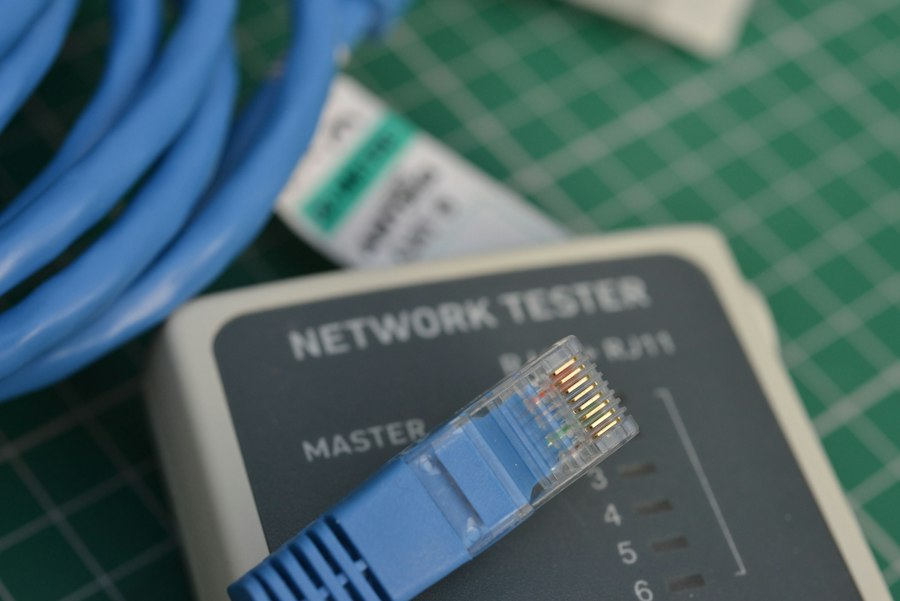
Before diving into configurations, let’s talk about the tools you’ll need. Some of these you might already have, others might require an upgrade.
Router/Firewall: The Brains of the Operation
This is arguably the most crucial component. You’ll need a router that supports advanced features like VLANs, robust firewall rules (stateful packet inspection at a minimum), and potentially even an Intrusion Detection/Prevention System (IDS/IPS).
- Managed Switch (Optional but Recommended): If you have many wired devices and want to extend your VLANs beyond your router’s built-in ports, a managed switch is essential.
These allow you to assign specific ports to specific VLANs.
- Access Points: If your router doesn’t have robust Wi-Fi capabilities or you need better coverage, dedicated access points are ideal. Look for ones that support multiple SSIDs (Wi-Fi networks) and can tag them to different VLANs.
Computing Devices: Workstation and Servers
- Work Laptop: Your employer may have specific security requirements for this. Ensure it’s always up to date, running antivirus software, and configured with a strong firewall.
- Personal Devices: Your personal computers, phones, and tablets.
These should also be kept updated and secured.
- IoT Devices: Smart home gadgets. These are the most vulnerable and the primary reason for strong segmentation.
Software and Services: The Behind-the-Scenes Protectors
- VPN Client/Service: For securely connecting to corporate networks and for encrypting your personal internet traffic.
- Multi-Factor Authentication (MFA): Essential for all critical accounts (router, email, work apps).
- DNS Filtering (e.g., Pi-hole, NextDNS): Blocks malicious domains at the DNS level, adding an extra layer of protection.
- Antivirus/Anti-malware: For all your computing devices.
- Network Monitoring Tools (Optional): Tools that can alert you to unusual network activity.
Step-by-Step Implementation Guide
Now, let’s get down to the practical steps of setting up your zero-trust home network. This will involve planning, configuration, and ongoing management.
Planning Your Network Segments (VLANs)
This is where you define who talks to whom. A good starting point is to categorize your devices into logical groups based on their trust level and purpose.
- Management VLAN (VLAN 1, or a specific dedicated VLAN): This is for accessing and configuring your network hardware (router, switches, access points). Keep this segment very restricted. Only trusted devices should ever be on this VLAN, and ideally, only when you are actively managing the network.
- Work VLAN: For your corporate-issued devices. This segment should have the strictest outbound rules and potentially a VPN connection directly to your corporate network if your employer requires it. No other devices should be on this VLAN.
- Personal/Trusted VLAN: For your personal computers, smartphones, and other devices you trust and use for sensitive personal activities (banking, personal email).
- IoT VLAN: This is for all your smart home devices – cameras, smart plugs, thermostats, speakers, etc. These devices often have limited security features and should be heavily restricted. They generally only need outbound internet access to their manufacturer’s cloud services.
- Guest VLAN: If you frequently have guests, a dedicated guest network provides internet access without giving them access to your internal network resources. This should be completely isolated from all other internal VLANs.
- Entertainment/Streaming VLAN (Optional): For smart TVs, streaming boxes, gaming consoles. These might have slightly more permissive rules than the IoT VLAN but still shouldn’t access your sensitive data.
Write down your chosen VLAN IDs and IP ranges for each segment. For example:
- Management VLAN (ID 10): 192.168.10.0/24
- Work VLAN (ID 20): 192.168.20.0/24
- Personal VLAN (ID 30): 192.168.30.0/24
- IoT VLAN (ID 40): 192.168.40.0/24
- Guest VLAN (ID 50): 192.168.50.0/24
Configuring Your Router and Network Hardware
This is where you bring your plan to life. The exact steps will vary significantly depending on your router’s make and model. Consult your device’s manual or online resources.
Setting Up VLANs on Your Router
Access your router’s administration interface. You’ll typically find a section for “VLANs,” “Network Segmentation,” or similar.
- Create VLAN Interfaces: Create a separate virtual interface for each VLAN you defined in your plan (e.g., VLAN 10, 20, 30, 40, 50).
- Assign IP Addresses and DHCP Servers: For each VLAN interface, assign a unique IP address (e.g., 192.168.10.1 for VLAN 10) and configure a DHCP server to automatically assign IP addresses to devices in that segment. Make sure the DHCP range matches your chosen subnet (e.g., 192.168.10.100 – 192.168.10.200).
- Configure Firewall Rules: This is the most critical part for zero trust. The default should be to deny all traffic between VLANs. Then, you’ll create specific “allow” rules for necessary communication.
- Management VLAN: Only allow established/related traffic from your trusted personal devices to the management interface. Block all other inbound/inter-VLAN traffic.
- Work VLAN: Allow outbound internet access. If required by your employer, allow VPN tunnel traffic to corporate resources. Deny all inbound traffic from other VLANs, and deny all unsolicited inbound internet traffic.
- Personal VLAN: Allow outbound internet access. You might allow certain discovery protocols (like mDNS/Bonjour) to the Entertainment VLAN if you want to stream content, but think carefully about these exceptions. Deny all inbound traffic from IoT or Guest VLANs.
- IoT VLAN: This should be the most restricted. Allow only outbound internet access to specific known ports/IPs that the IoT devices need to communicate with their cloud services. Deny all inbound internet traffic. Deny all inter-VLAN traffic, especially to Work or Personal VLANs.
- Guest VLAN: Only allow outbound internet access. Completely isolate this from all other internal VLANs.
Configuring Wi-Fi Access Points (SSIDs)
If you’re using separate access points or your router supports multiple SSIDs:
- Create Multiple SSIDs: Set up a separate Wi-Fi network (SSID) for each of your primary VLANs (e.g., “MyWorkWiFi” for Work VLAN, “MyHomeWiFi” for Personal VLAN, “MyIoTWiFi” for IoT VLAN, “GuestWiFi” for Guest VLAN).
- Tag SSIDs to VLANs: Crucially, configure each SSID to tag traffic with its corresponding VLAN ID. This ensures devices connecting to “MyIoTWiFi” are automatically placed in the IoT VLAN.
- Use Strong Encryption: Always use WPA3 if your devices support it, otherwise WPA2-Enterprise or WPA2-Personal with strong, unique passphrases for each SSID.
Managed Switch Configuration (If Applicable)
If you have a managed switch for wired devices:
- Configure Trunk Ports: The port connecting your router to your managed switch needs to be a “trunk” port, allowing traffic from all your VLANs to pass through.
- Assign Access Ports: Assign specific ports on the switch to specific VLANs. For example, the port where your IoT hub connects should be assigned to the IoT VLAN.
Device Onboarding and Management
Once your network infrastructure is set up, you need to connect your devices.
- Categorize and Connect: Go through each device and connect it to the appropriate wired port (on a managed switch) or Wi-Fi SSID, ensuring it lands in the correct VLAN.
- Strong Passwords and MFA: Ensure all device administration interfaces (router, APs, smart home hubs) have strong, unique passwords and MFA enabled where possible.
- Regular Updates: Keep all your devices – router, switch, APs, computers, phones, and especially IoT devices – updated with the latest firmware and software. This patches vulnerabilities.
- DNS Filtering: Configure your router or individual devices to use a DNS filtering service like Pi-hole or NextDNS. This helps block known malicious websites and ads, preventing many common attacks before they even reach your devices.
- Work Device Compliance: For your work laptop, ensure it adheres to all corporate security policies, including VPN usage, antivirus, and operating system updates. Your company’s IT department might have specific instructions for home network security, so be sure to follow those.
When establishing a zero-trust home network for remote workers and IoT devices, it’s essential to consider the security features of the devices being used. For instance, understanding the unique aspects of smartphones can significantly impact your overall security strategy. A great resource to explore this further is an article that discusses what makes the Google Pixel phone different, which can be found here. By integrating secure devices into your network, you can enhance your defenses against potential threats.
Ongoing Maintenance and Monitoring
| Metric | Description | Recommended Value/Setting | Notes |
|---|---|---|---|
| Network Segmentation | Number of isolated network segments for devices | 3+ | Separate segments for remote workers, IoT devices, and guest access |
| Multi-Factor Authentication (MFA) | Enabled for all remote access points | 100% | Critical for verifying user identity beyond passwords |
| Device Authentication | Percentage of devices with certificate-based authentication | 90%+ | Ensures only trusted devices connect to the network |
| Least Privilege Access | Access rights assigned based on minimum necessary permissions | 100% | Limits potential damage from compromised accounts or devices |
| Network Traffic Encryption | Percentage of network traffic encrypted (e.g., VPN, TLS) | 95%+ | Protects data in transit from interception |
| Continuous Monitoring | Frequency of network and device activity scans | Real-time or hourly | Detects anomalies and potential breaches quickly |
| Patch Management | Time to apply security patches after release | Within 7 days | Reduces vulnerability window for devices and software |
| IoT Device Inventory | Percentage of IoT devices identified and cataloged | 100% | Essential for managing and securing all connected devices |
| Access Logging | Percentage of access events logged and reviewed | 100% | Supports auditing and incident response |
| Incident Response Time | Average time to respond to detected security incidents | Under 1 hour | Minimizes impact of security breaches |
Setting up a zero-trust network isn’t a one-time task. It requires continuous attention and adaptation.
Regular Security Audits
Periodically review your firewall rules and device assignments. Are there any devices in the wrong VLAN? Are there any unnecessary “allow” rules that could be tightened? As you add new devices, always consider which VLAN they should belong to and what their absolute minimum access requirements are. This helps prevent “rule creep” where over time, too many exceptions are made, weakening your security posture.
You might also consider using a network scanner (like Nmap) from different VLANs to verify that devices are indeed isolated and cannot be reached from segments where they shouldn’t be. This helps catch misconfigurations.
Firmware and Software Updates
This cannot be stressed enough. Vulnerabilities are discovered regularly. Applying updates promptly is your first line of defense. Enable automatic updates where safe and reliable, and manually check for updates for devices that don’t support automatic patching (especially many IoT devices). Pay particular attention to your router, switches, and Wi-Fi access points.
Monitoring Network Traffic
While you don’t need a full-blown Security Operations Center (SOC) at home, tools like a Raspberry Pi running Pi-hole can give you insights into what domains your devices are communicating with. If your smart lightbulb starts trying to connect to strange IP addresses or known malware domains, that’s a red flag. Some advanced routers or firewalls also offer basic traffic logging and anomaly detection. Understanding your network’s normal behavior makes it easier to spot abnormal activities.
Data Backups
Even with the best zero-trust setup, breaches can happen. Regularly back up your critical data. This means having a reliable backup strategy for your personal and work devices. For work-related data, follow your company’s backup policies. For personal data, consider local backups (external drives) and cloud backups.
In the evolving landscape of cybersecurity, ensuring a secure environment for remote workers and IoT devices is crucial, and a related article that provides insights into selecting reliable technology for such setups can be found here. By exploring the latest options in laptops, you can enhance your home network’s security while maintaining productivity. For more information on the best devices to support your zero-trust strategy, check out this article which highlights top Toshiba laptops for 2023.
Potential Challenges and Considerations
While the benefits are clear, setting up a zero-trust home network isn’t without its considerations.
Increased Complexity
This approach is more complex than a flat network. It requires a deeper understanding of networking concepts like VLANs, firewall rules, and IP addressing. Be prepared to spend time learning and configuring. If you’re not comfortable with networking, you might need to rely on online guides, forums, or even professional help.
Device Compatibility
Not all devices play nicely with advanced network configurations. Some older IoT devices might struggle with specific Wi-Fi security protocols or have difficulty with DHCP if you’re using unusual IP ranges. Test thoroughly after making changes. Some very basic IoT devices might only work on a completely open network, which should be avoided. In such cases, consider replacing the device or accepting the risk and isolating it as much as possible.
Performance Overhead
While generally minimal, routing traffic between VLANs and enforcing granular firewall rules can introduce a slight performance overhead on your router, especially if it’s an older or lower-powered model. For most home users, this is negligible, but if you have a very high-speed internet connection and many devices, it’s something to be aware of. Look for a router with a powerful processor.
Troubleshooting Headaches
When something isn’t working, debugging can be harder. A device might not be able to connect to the internet, or two devices might not be able to see each other because of a firewall rule. Patience and systematic troubleshooting (checking VLAN assignment, then firewall rules, then device settings) are key.
Despite these challenges, the enhanced security and peace of mind that come with a zero-trust home network make it a worthwhile endeavor for anyone dealing with sensitive data or a multitude of smart devices. It’s about taking proactive steps to protect your digital life in an increasingly interconnected world.
FAQs
What is a zero-trust home network?
A zero-trust home network is a security model that assumes no device or user, whether inside or outside the network, can be trusted by default. It requires strict identity verification for every person and device attempting to access resources on the network, ensuring that only authorized users and devices can connect and communicate.
How can I implement a zero-trust model in my home network?
To implement a zero-trust model, start by segmenting your network into different zones for various devices, such as IoT devices, computers, and mobile devices. Use strong authentication methods, such as multi-factor authentication (MFA), and regularly update your devices and software to protect against vulnerabilities. Additionally, monitor network traffic for unusual activity and enforce strict access controls.
What are the benefits of a zero-trust home network for remote workers?
The benefits of a zero-trust home network for remote workers include enhanced security against unauthorized access, reduced risk of data breaches, and improved control over who can access sensitive information. This model also helps protect against threats that may arise from insecure home networks, ensuring that remote workers can safely access company resources.
What devices should I include in my zero-trust home network?
In a zero-trust home network, you should include all devices that connect to the network, such as computers, smartphones, tablets, smart TVs, and IoT devices like smart thermostats, cameras, and voice assistants. Each device should be assessed for security risks and configured to comply with the zero-trust principles.
How often should I update my zero-trust home network security measures?
You should regularly review and update your zero-trust home network security measures, ideally on a quarterly basis or whenever new devices are added to the network. Additionally, stay informed about the latest security threats and vulnerabilities, and apply updates and patches to your devices and software as soon as they become available.
Enjoying our content? Make us a preferred source on Google:
Add us as a Preferred Source on Google