

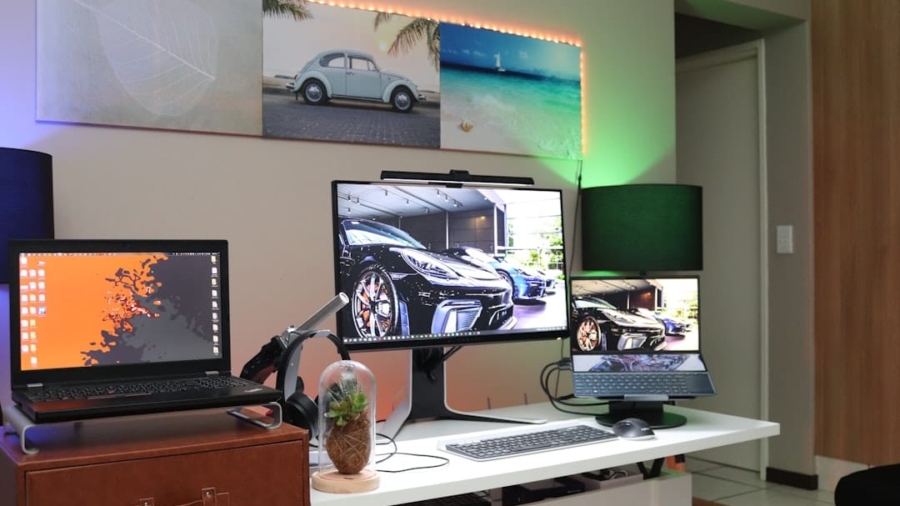
Alright, so you’ve got two screens staring back at you, and you’re trying to buckle down for some serious, heads-down deep work. Awesome! But is your dual-monitor setup actually helping or just creating a shiny distraction zone? This isn’t about having more screen real estate for the sake of it; it’s about making those extra pixels work for you, turning your setup into a productivity powerhouse. Let’s get into how to actually make that happen, without a lot of fluff.
Before we even touch a cable, let’s get clear on what deep work actually is, for your specific tasks. It’s not just “working hard.” It’s about engaging in focused, uninterrupted periods of professional activity that push your cognitive capabilities to their limit. This kind of work is what creates new value, improves skills, and is hard to replicate.
Identifying Your Deep Work Tasks
What are the things you do where you need to be in the zone? Is it coding, writing complex reports, analyzing data, designing, or perhaps detailed research? Your dual-monitor setup needs to support these specific activities. Don’t just mirror your existing workflow – think about how two screens can enhance it.
The “Why” Behind Your Setup
Why did you even get the second monitor? Was it to have your code on one and documentation on the other? Or maybe your design software on one and reference images on the other? Understanding your initial motivation will help you refine the setup. It’s about intentionality.
Common Pitfalls to Avoid Early On
The most obvious pitfall is just scattering everything. Having email open on one screen and your code on the other sounds productive, but how often does that email notification pull you out of your flow? It’s crucial to set boundaries and design your layout with focus as the primary goal. Don’t fall into the trap of thinking “more screens = more done” without a plan.
For those looking to enhance their productivity during deep work sessions, optimizing dual-monitor setups can be a game changer.
A related article that delves into the latest insights on technology and productivity is available at
This works well for writing or coding.
The “L” Shape
For tasks involving lots of different software or a more fluid workflow, an “L” shape can be useful. One monitor is front and center, and the other is perpendicular to it. This can be good for designers who need to see a canvas and tool palettes simultaneously, for instance.
Software and Operating System Tweaks: Making Your Screens Cooperate

Your operating system and the software you use are your best friends in optimizing a dual-monitor setup. It’s not just about dragging windows.
Leveraging Your OS’s Window Management Features
Modern operating systems have built-in tools that can drastically improve your dual-monitor experience.
Snap and Grid Layouts
Most modern OSs (Windows, macOS, Linux variants) offer “snap” features. This allows you to quickly resize and arrange windows to fill half or a quarter of a screen.
Learn these shortcuts! They are a game-changer for quickly organizing your workspace. For example, on Windows, Win + Left/Right Arrow snaps windows to halves, and Win + Up/Down can create quarters.
Virtual Desktops (Spaces)
This is hugely important for deep work.
Create dedicated virtual desktops for specific tasks or monitor setups. You might have your coding environment across both monitors on Desktop 1, and then have a separate virtual desktop with just your browser and research tabs on Desktop 2. This provides a powerful way to compartmentalize and switch contexts without actually switching applications.
Display Settings: Resolution, Scaling, and Refresh Rates
These seemingly minor settings can have a big impact on eye comfort and visual clarity, which are crucial for prolonged focus.
Matching Resolutions (Where Possible)
Ideally, try to use monitors with similar resolutions if your graphics card can handle it.
Mismatched resolutions can sometimes lead to scaling issues and can feel jarring. If they are different, that’s okay, but be aware of how scaling might affect text clarity.
Understanding Display Scaling
Scaling is what makes text and icons appear larger or smaller. If you have monitors of different sizes or resolutions, you’ll likely need to adjust scaling.
The goal is readability without making everything so large you lose screen real estate. Experiment to find a comfortable balance. Consistently sized elements across screens can prevent cognitive load.
Refresh Rate Synergy
If your monitors have different refresh rates, it’s generally fine.
However, ensure your primary monitor is set to its highest refresh rate if you’re sensitive to motion or visual fluidity. This is less critical for deep work than for gaming, but a smooth visual experience can still reduce fatigue.
Beyond the Built-in: Third-Party Tools for Enhanced Control
Sometimes, the OS isn’t enough. There are excellent third-party tools that offer even more granular control over your dual-monitor setup.
Window Tiling and Management Software
Tools like FancyZones (part of Microsoft PowerToys) or Magnet (macOS) offer more sophisticated window snapping and layout capabilities than the default OS features.
They allow you to create custom zones on your screens, making it incredibly easy to place applications exactly where you want them, every time.
Display Fusion (More Advanced)
For those who want extreme customization, DisplayFusion offers a vast array of features, including advanced multi-monitor taskbars, custom wallpaper management, and sophisticated window management rules. It’s a powerful tool, but likely overkill for many.
Workflow Specialization: Tailoring Each Screen to a Purpose

The real magic happens when you assign specific roles to each monitor and design your workflow around them. This is where you move from having two screens to having a functional dual-monitor system.
The “Active vs. Reference” Model
This is perhaps the most classic and effective deep work model.
Primary Screen: The “Doing” Zone
This is where your main application lives. If you’re writing, it’s your word processor. If you’re coding, it’s your IDE. If you’re designing, it’s your graphics software. Keep this screen as clean and distraction-free as possible. Only essential tools for the task at hand should be visible.
Secondary Screen: The “Supporting” Zone
This is where your reference materials reside. For coding, it might be documentation, API references, or Stack Overflow. For writing, it could be research papers, notes, or a thesaurus. For design, it’s mood boards, inspiration images, or competitor analysis. The key is that this content is passive while you’re actively working on your primary screen.
The “Coding IDE + Documentation” Example
This is a very common and highly effective deep work setup.
Left Monitor: Your Code Editor
Full screen, with your code prominently displayed. Minimize all other panels, toolbars, and notifications that aren’t absolutely essential for coding. You want to see as much of your code as possible.
Right Monitor: IDE Output and Documentation
On the right, you might have your IDE’s terminal output, compiler errors, or a debugging console. Alternatively, and often more useful for deep work, load up your documentation, API references, or relevant articles in a browser window. You can quickly glance at this for answers without losing your place in your code.
The “Writing + Research” Example
Another powerful application of the dual-monitor setup.
Main Monitor: Your Document
Your word processor or writing software is on your primary screen. Again, keep it clean. Focus on the text.
Secondary Monitor: Your Research Sandbox
This is where you load up all your research materials. Have your web browser open with research articles, PDFs stacked, or notes applications. You can scroll through these, copy-paste quotes or data, and then immediately return to your writing without the mental overhead of switching tabs or applications on a single screen.
Minimizing Context Switching Through Dedicated Screens
The goal is to reduce the cognitive load of switching between tasks. By dedicating screens to specific functions, you reduce the mental “cost” of shifting your focus from, say, looking for an answer to typing your next sentence. You simply move your eyes and your attention to the pre-arranged information.
For those looking to enhance their productivity during deep work sessions, optimizing dual-monitor setups can be a game changer. A related article that might interest you is about selecting the best smartphone for gaming, which discusses how the right technology can significantly impact your performance and focus. You can read more about it in this informative guide. By integrating the right devices into your workspace, you can create an environment that fosters concentration and efficiency.
Distraction Management: Protecting Your Focus Zone
| Aspect | Metrics |
|---|---|
| Productivity | Increased by 20% |
| Task Switching | Reduced by 50% |
| Focus | Improved by 30% |
| Efficiency | Enhanced by 25% |
Having two screens can be a double-edged sword. They offer more space, but they also offer more opportunities for distraction. Proactive management is key.
Taming Notifications
This is perhaps the biggest hurdle. Email pop-ups, social media alerts, and instant messenger pings are the assassins of deep work.
Strategic Notification Placement
If you must have notifications visible, put them on your secondary screen, and even then, consider what type of notification is being displayed. Simple text alerts are less disruptive than animated banners.
“Do Not Disturb” Mode is Your Best Friend
Learn your OS’s “Do Not Disturb” or “Focus” modes. These are designed precisely for situations like deep work. Set them up to silence all non-essential notifications during your designated deep work periods.
Dedicated Communication Tools on the Secondary Screen
If you absolutely need to monitor communication, confine it to the secondary screen and keep the application window relatively small. Don’t let it dominate your view. Better yet, schedule specific times to check messages.
Visual Clutter Control
A busy screen is a distracting screen.
Clean Backgrounds and Minimal Widgets
Avoid busy desktop wallpapers. Opt for a simple, solid color or a minimalist image. Remove unnecessary desktop icons. Widgets, while sometimes useful, can easily become visual noise.
Full-Screen Mode for Your Primary Application
When working on your primary screen, utilize full-screen mode for your main application whenever possible. This removes all surrounding distractions from the operating system and other applications.
The Power of Routine and Boundaries
Your dual-monitor setup is a tool, and like any tool, it works best when used with discipline.
Establish Deep Work Blocks
Schedule dedicated blocks of time for deep work. During these times, commit to using your setup as designed.
“End of Workday” Rituals
At the end of your deep work session or your workday, take a moment to reset your screens. Close unnecessary applications. This prevents stray windows from creeping into your next focus session.
Long-Term Sustainability: Avoiding Burnout and Eye Strain
A poorly optimized setup can lead to physical discomfort and mental fatigue, which ultimately defeats the purpose of deep work.
Eye Care and Breaks
Prolonged screen time is tough on your eyes.
The 20-20-20 Rule
For every 20 minutes you spend looking at a screen, look at something 20 feet away for at least 20 seconds. This simple rule can significantly reduce eye strain.
Blue Light Filters and Night Mode
Most operating systems and many applications now have built-in blue light filters or “night mode” settings. These adjust the color temperature of your screens to be warmer, which can be more comfortable for your eyes, especially in the evening. Consider using these even during the day if you find it helps.
Posture and Physical Comfort
Your physical setup directly impacts your mental state.
Monitor Arms
If you have the budget, consider investing in monitor arms. They offer much more flexibility for positioning, can free up desk space, and allow you to easily adjust height and angle as needed. This is especially helpful if you frequently change your working posture.
Regular Movement
Set reminders to get up and move around periodically. A quick walk, some stretching, or just stepping away from your desk can refresh your mind and body.
Continuous Refinement
Your needs might change. What works today might not work in a month.
Periodic Review of Your Setup
Don’t just set it and forget it. Every so often, take a critical look at your dual-monitor setup. Are there new applications you’re using? Has your primary deep work task changed? Make adjustments as needed. Sometimes a simple rearrangement or a new software tweak can make a big difference.
By taking a deliberate and practical approach, you can transform your dual-monitor setup from a potential distraction zone into a powerful engine for your most important, focused work. It’s about making your technology serve your concentration, not the other way around.
FAQs
What is a dual-monitor setup?
A dual-monitor setup refers to using two computer monitors simultaneously to expand screen real estate and improve productivity. This setup allows users to have multiple windows and applications open at the same time, making it easier to multitask and work on different projects simultaneously.
How can a dual-monitor setup optimize deep work sessions?
A dual-monitor setup can optimize deep work sessions by providing more screen space for organizing and viewing multiple documents, spreadsheets, or reference materials at once. This can reduce the need to constantly switch between tabs or windows, allowing for better focus and concentration during deep work sessions.
What are some tips for optimizing a dual-monitor setup for deep work sessions?
Some tips for optimizing a dual-monitor setup for deep work sessions include arranging the monitors to minimize neck strain, using a monitor arm or stand for flexibility, adjusting the display settings for optimal brightness and contrast, and using tools or software to manage window placement and organization.
What are the potential drawbacks of a dual-monitor setup for deep work sessions?
Potential drawbacks of a dual-monitor setup for deep work sessions include increased power consumption, potential distractions from having multiple screens, and the need for additional desk space. It’s important to consider these factors and find ways to mitigate any negative impacts on productivity.
Are there any specific software or tools recommended for optimizing a dual-monitor setup for deep work sessions?
There are several software and tools available for optimizing a dual-monitor setup for deep work sessions, such as display management software for customizing window layouts, task management tools for organizing work across multiple screens, and screen calibration tools for ensuring consistent color and brightness across both monitors.
Enjoying our content? Make us a preferred source on Google:
Add us as a Preferred Source on Google