

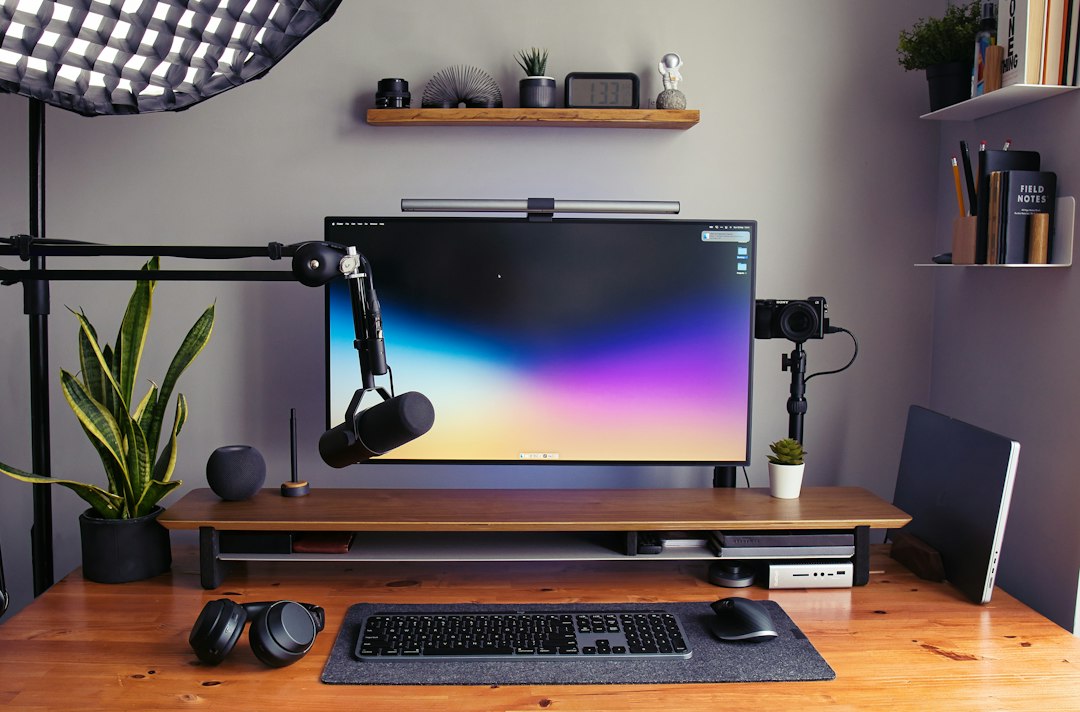
Optimizing your dual-screen or ultrawide workspace boils down to intentionally organizing your digital space to minimize distractions and support how your brain naturally processes information. It’s about creating a setup that complements your workflow, not one that adds visual noise or forces you to constantly reorient yourself. The goal is to make your screens extensions of your thought processes, allowing you to stay in flow and reduce cognitive load. This isn’t just about throwing more monitors at the problem; it’s about smart arrangement, thoughtful software choices, and understanding how your perception impacts your productivity.
Setting the Stage: Physical Arrangement and Ergonomics
Before we even touch software, the physical setup of your monitors dramatically impacts how effectively you can use them. Improper placement can lead to neck strain, eye fatigue, and ultimately, reduced focus. This isn’t just about comfort; it’s about making sure your visual field is optimized for sustained attention.
Ergonomic Sweet Spots for Dual Monitors
For a dual-monitor setup, the most common and generally effective arrangement places one primary monitor directly in front of you, centered with your body. This is where your main application – the one you’re actively working in – should live. Your secondary monitor then sits to its immediate left or right, angled slightly inwards.
The exact angle depends on your desk depth and personal preference, but a slight inward turn (around 15-25 degrees) helps reduce head movement. You want to be able to glance at the secondary screen with minimal head turn, primarily using eye movement. The top edges of both screens should be roughly at eye level, allowing you to look slightly downwards at the center of the screen, which is generally more comfortable for your neck and eyes.
Ensure both monitors are at the same height if possible, to avoid your eyes constantly readjusting their focal point vertically.
The distance from your eyes to the screens is also crucial. A good rule of thumb is an arm’s length (about 20-30 inches or 50-75 cm). Too close, and you’ll be constantly shifting your focus and potentially straining your eyes; too far, and details become difficult to discern.
Ultrawide Monitor Positioning
Ultrawide monitors (21:9 or 32:9 aspect ratios) present a different ergonomic challenge and opportunity. Because of their width, centering them effectively means the middle of the screen is directly in front of you. This is where your primary focus area should be.
The biggest mistake with ultrawides is trying to treat them like two separate monitors by placing your main work far off to one side. This forces constant, unnatural head turns, defeating the purpose of a seamless display. Instead, think of an ultrawide as a continuous canvas. Your most important application should occupy the central third to half of the screen. Auxiliary information or secondary applications can then flank this central area.
For ultrawides, the curvature (if present) helps direct your gaze inwards, making the edges more accessible without excessive head movement. Ensure the monitor is positioned at an arm’s length, similar to dual monitors, with the top edge at eye level. Given their width, it’s even more critical to maintain a consistent viewing distance across the entire panel to minimize distortion and eye strain.
Lighting and Glare Reduction
Often overlooked, ambient lighting plays a significant role in cognitive focus. Glare on your screen creates hot spots that force your eyes to work harder, leading to fatigue. Position your monitors to avoid direct sunlight or bright overhead lights reflecting off the screen surface. Consider using monitor arms to allow for easy adjustment throughout the day as light conditions change. Desk lamps with adjustable brightness and color temperature can also be beneficial, providing bias lighting behind or around your monitors to reduce the contrast between the screen and its surroundings, easing eye strain. Matte screen finishes are generally preferable to glossy ones for reducing reflections.
In the quest for enhancing productivity and cognitive focus, the article “Optimizing Dual-Screen and Ultrawide Workspaces for Maximum Cognitive Focus” provides valuable insights into how to effectively utilize expansive screen setups. For those interested in maximizing their tech experience, a related article discusses the capabilities of smartwatches, specifically which models allow users to view pictures on them. This can complement a dual-screen workspace by providing quick access to visual content on the go. You can read more about it here: Which Smartwatches Allow You to View Pictures on Them?.
Key Takeaways
- The training data includes information and events up to October 2023.
- Insights and knowledge are based on a wide range of sources available until the cutoff date.
- No updates or developments occurring after October 2023 are included in the training.
- Users should verify current information from reliable sources for the latest updates.
- The model’s responses reflect the context and knowledge available up to the specified date.
Strategic Window Management
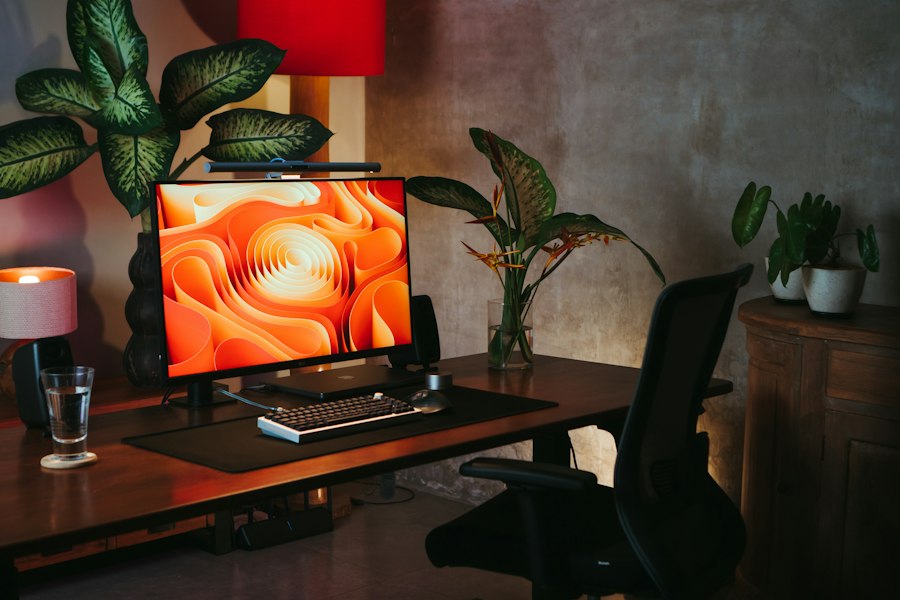
Once your physical setup is dialed in, the next step is to master window management. This is where you translate your cognitive workflow into a tangible layout across your digital canvas. The goal is to minimize searching for windows, reduce overlapping, and ensure frequently used information is always visible or easily accessible.
Defining Primary and Secondary Information Zones
For any multi-screen setup, start by clearly defining what information belongs where.
With dual monitors:
- Primary Monitor: This is your active workspace. Your main application – be it a word processor, IDE, design software, or spreadsheet – lives here. This screen is for doing.
- Secondary Monitor: This screen supports your primary task. It can host reference materials (documentation, PDFs), communication tools (Slack, email), monitoring dashboards, or tools that provide context without requiring constant interaction. This screen is for referencing or monitoring.
With an ultrawide monitor:
- Central Zone: Similar to the primary monitor, this is your active workspace. The application you’re directly interacting with takes center stage.
- Side Zones (Left/Right): These act like a secondary monitor, holding supporting information, communication apps, or even a second application that you frequently switch to, but that isn’t your primary focus at any given moment.
The key is consistency. Train your brain to expect certain types of information in specific zones. This reduces the mental effort required to locate what you need, keeping you in flow.
Leveraging Virtual Desktops/Spaces
Virtual desktops (or Spaces on macOS) are indispensable for extending your screen real estate without adding more physical monitors. They allow you to create distinct “contexts” for different tasks or projects.
For example:
- Desktop 1: Your core work (e.g., development environment on primary monitor, documentation on secondary).
- Desktop 2: Communication and meetings (e.g., Slack/Teams on primary, calendar/meeting notes on secondary).
- Desktop 3: Research (e.g., multiple browser windows on primary, note-taking app on secondary).
This strategy prevents your screens from becoming cluttered with unrelated windows. When you switch tasks, you switch desktops, instantly bringing up the relevant applications and their arrangement. This minimizes the mental “reset” required when moving between different types of work. Keyboard shortcuts for switching between desktops are essential here; learning them will save significant time and effort.
Smart Snapping and Tiling Utilities
Modern operating systems offer basic window snapping (e.g.
, Aero Snap in Windows, snapping in macOS).
However, dedicated window management utilities can elevate your game significantly, especially on ultrawides where default snapping can be limited.
Popular tools include:
- Windows: FancyZones (part of PowerToys), DisplayFusion, AquaSnap.
- macOS: Magnet, Rectangle, BetterSnapTool.
- Linux: Many desktop environments have robust tiling managers built-in (e.g., i3wm, Sway, KDE’s KWin scripts).
These tools allow you to define custom snap zones, create keyboard shortcuts for resizing and moving windows to specific areas, and even save window layouts. For an ultrawide, this is crucial for segmenting the screen into logical, easily repeatable divisions (e.g., a 50/25/25 split, or a 70/30 split). For dual monitors, they can help quickly arrange applications across both screens with precise sizing.
The benefit is consistency and speed. Instead of manually dragging and resizing every window, a quick keyboard shortcut places it exactly where it belongs, reinforcing your defined information zones and minimizing context switching overhead.
Optimizing Application Placement and Workflow
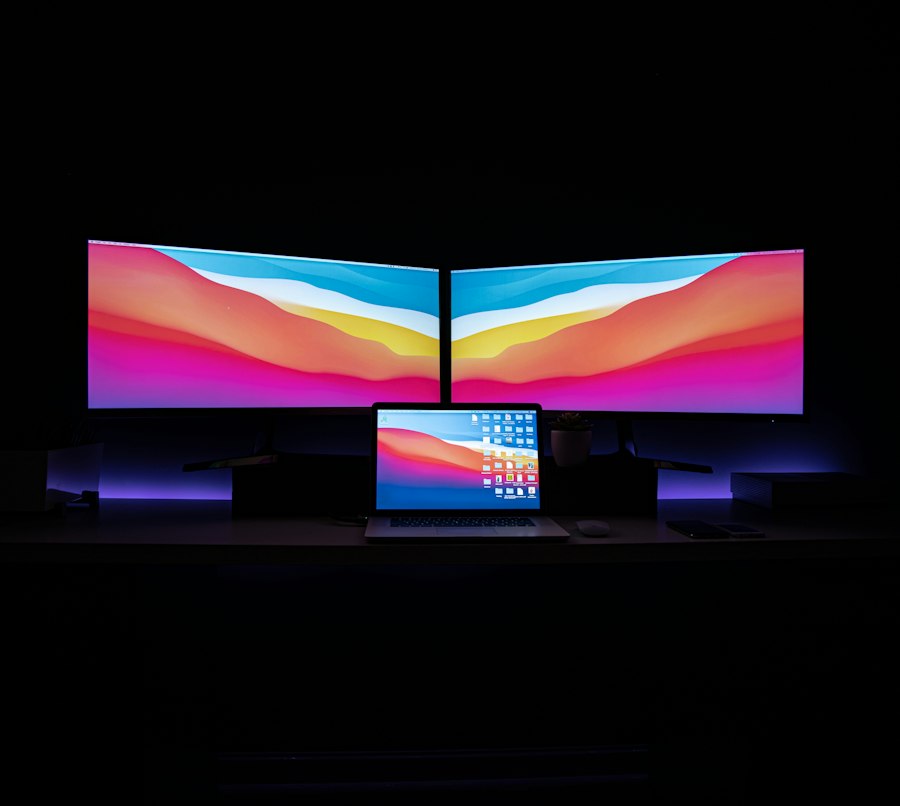
It’s not just where applications go, but how you use them in relation to each other. This section focuses on developing a workflow that leverages your multi-screen setup to its fullest potential, reducing mental friction and maintaining focus.
Grouping Related Applications
Think about your common workflows. What applications do you use together?
Group them logically.
Example:
- Writing/Research: Word processor on primary, web browser with research tabs on secondary (or side of ultrawide), note-taking app readily available.
- Coding/Development: IDE on primary, terminal/documentation/version control GUI on secondary (or side of ultrawide).
- Design: Main design software on primary, reference images/asset manager/layers panel on secondary.
The idea is to avoid constantly minimizing and maximizing windows, or switching focus between unrelated applications. By keeping related tools visible and accessible, you reduce the mental effort of context switching.
Minimizing Distractions and Notifications
One of the biggest pitfalls of multiple screens is the temptation to fill them with distractions. While it’s great to have your communication app open, if it’s constantly pinging and pulling your attention, it’s counterproductive.
- Designated Notification Screen/Zone: If you must have email or Slack open, place it on a secondary screen or a specific zone of your ultrawide that is slightly out of your primary line of sight. This makes notifications visible but less intrusive.
- Strategic Do Not Disturb: Leverage your operating system’s “Do Not Disturb” or “Focus Assist” features.
Schedule them during deep work periods.
- Batch Communication: Instead of reacting to every notification, consider checking communication channels in batches at predetermined times. Close or minimize chat applications when you need uninterrupted focus.
- Browser Tab Management: On your secondary screen, resist the urge to have dozens of unrelated browser tabs open. Use tab groups or dedicated browser profiles for different projects to keep things tidy.
The goal is to provide visibility to necessary information without making it a constant interruption.
Leveraging Consistent Browser Profiles and Workspaces
If your work involves multiple projects or roles, browser profiles (in Chrome, Edge, Firefox) or dedicated browser workspaces (e.g., in Arc Browser) can be incredibly useful.
Each profile can have its own set of bookmarks, extensions, and logged-in accounts.
You could dedicate one browser profile to “Project A” and another to “Admin Tasks.” When you switch projects, you switch browser profiles, instantly bringing up all the relevant tabs and settings for that specific task. On a multi-screen setup, you can even have different profiles open on different screens, separating contexts clearly. This prevents the mental overhead of sifting through irrelevant tabs and remembering which account you’re logged into for a particular service.
Software and Operating System Tweaks
Beyond physical arrangement and window strategy, several software-level optimizations can significantly enhance your cognitive focus on a multi-screen setup. These are often small changes that, cumulatively, make a big difference.
Taskbar/Dock Management
- Clutter-Free Primary: Keep your primary monitor’s taskbar or dock as clean as possible. Pin only your most frequently used core applications.
- Secondary Monitor Taskbar: If your OS supports it (like Windows), you can have a separate taskbar on your secondary monitor. This is useful for pinning applications that primarily live on that screen, reducing the visual noise on your main display.
- Auto-Hide: Consider auto-hiding the taskbar/dock on screens where screen real estate is at a premium, or where you want minimal distractions. Access it only when needed.
The less visual clutter and fewer choices your brain has to process at the bottom of your screen, the more easily it can focus on the actual content.
Monitor Calibration and Consistency
Different monitors, even of the same model, can have slightly different color temperatures, brightness levels, and contrast. Inconsistent displays can cause eye strain and make your brain work harder to adjust as you shift your gaze.
- Brightness Match: Manually adjust the brightness of all your monitors to be as similar as possible. A good starting point is often around 120 cd/m² for typical office lighting.
- Color Temperature: Try to match the color temperature across your screens. Many monitors have a “Warm,” “Cool,” or “sRGB” preset that can help. Advanced users might use a hardware calibrator for professional-grade matching.
- Night Light/Blue Light Filters: Use built-in OS features (Night Light in Windows, Night Shift in macOS) or third-party tools (like f.lux) to automatically adjust the color temperature to warmer tones in the evening. This reduces blue light exposure, which can disrupt sleep patterns, and generally makes extended screen time more comfortable. Apply these settings consistently across all displays.
Subtle inconsistencies accumulate to create fatigue. Aim for a unified visual experience across your workspace.
Effective Use of Hot Corners and Gestures
Operating systems like macOS and Linux desktop environments (and Windows with third-party tools) offer “hot corners” or gestures that can trigger actions when you move your mouse to a screen corner or perform a specific trackpad/mouse gesture.
- Instant Desktop Access: Assign a hot corner to “Show Desktop” to quickly clear all windows and see your wallpaper.
- Application Exposé/Mission Control: Use another corner or gesture to trigger an overview of all open windows for the current application or desktop. This is faster than cycling through windows.
- Quick Lock: A hot corner to lock your screen when you step away is a good security practice.
These small conveniences, when learned and internalized, shave off seconds and reduce friction, allowing you to fluidly navigate your digital space without breaking your cognitive stride.
In the quest for enhancing productivity and cognitive focus, many professionals are turning to innovative workspace setups. A related article that delves into the features of modern devices, such as the Samsung Galaxy Book Odyssey, can provide valuable insights for those looking to optimize their dual-screen and ultrawide workspaces. By exploring the capabilities of such devices, users can better understand how to leverage technology for improved efficiency. For more information, you can read the article here.
Sustaining Focus and Preventing Fatigue
| Metric | Dual-Screen Setup | Ultrawide Monitor Setup | Impact on Cognitive Focus |
|---|---|---|---|
| Screen Real Estate (inches) | 2 x 24″ (48″ total) | 34″ Ultrawide | More space reduces window switching, improving focus |
| Resolution (pixels) | 2 x 1920×1080 | 3440×1440 | Higher resolution supports clearer multitasking views |
| Typical Viewing Angle | ~90° between screens | ~21:9 aspect ratio, single continuous screen | Less head movement with ultrawide reduces fatigue |
| Window Management Efficiency | Moderate (requires manual window placement) | High (supports native split-screen and snapping) | Better window management enhances task switching |
| Distraction Potential | Higher (due to bezel breaks and multiple devices) | Lower (continuous screen, fewer physical breaks) | Fewer distractions improve sustained attention |
| Ergonomic Considerations | Requires head turning and neck movement | Minimal head movement, more natural gaze | Ergonomics support longer focus periods |
| Setup Complexity | Higher (multiple cables and calibration) | Lower (single device setup) | Simpler setups reduce cognitive load |
| Cost Efficiency | Varies (can be more expensive with two monitors) | Generally higher upfront cost | Investment balanced by productivity gains |
Even with the most optimized setup, human limitations mean you can’t maintain peak cognitive focus indefinitely. Proactive strategies for breaks, eye health, and mental resets are crucial for long-term productivity and well-being.
Implementing Regular Micro-Breaks
The Pomodoro Technique (25 minutes of work, 5 minutes of break) is popular for a reason. But even without strict adherence, regular short breaks are vital.
- Look Away: Every 20 minutes, look at something 20 feet away for 20 seconds. This “20-20-20 rule” helps relax your eye muscles and prevents digital eye strain.
- Stand Up and Stretch: Aim to stand up and stretch every 30-60 minutes. Get a drink of water. Walk a few steps. This improves circulation and prevents stiffness. If you have a standing desk, alternate between sitting and standing regularly.
- Hydration: Keep water readily available. Dehydration can contribute to fatigue and reduced concentration.
These micro-breaks prevent cumulative fatigue, allowing you to return to your work refreshed and more focused.
Managing Visual Clutter Beyond Windows
It’s not just about open applications; anything on your screen that isn’t directly relevant to your current task is potential visual clutter.
- Minimalist Wallpaper: A busy, high-contrast wallpaper can be distracting. Opt for a calm, dark, or plain wallpaper. Solid colors or subtle gradients are often best. If you use a photo, ensure it’s not overly vibrant or detailed, especially on your primary display.
- Desktop Icons: Keep your desktop free of icons. Use the “Downloads” folder, a dedicated “Work in Progress” folder, or a document management system instead. Treat your desktop as a temporary holding area, not permanent storage.
- Hidden Cursor: Some applications or OS settings allow the cursor to disappear after a short period of inactivity. This is a subtle tweak that removes a small visual distraction when you’re deeply engrossed in reading or writing.
The less information your peripheral vision has to process, the more cognitive resources are freed up for your main task.
Noise Management and Cognitive Load
While not strictly about screens, external noise significantly impacts cognitive focus. Your multi-screen setup creates a visually rich environment; ensure your auditory environment complements it.
- Noise-Canceling Headphones: Invest in good quality noise-canceling headphones, especially in open-plan offices or noisy home environments.
- Ambient Soundscapes: Experiment with ambient sounds or focus music. Apps like Brain.fm, Noisli, or even simple instrumental playlists can mask distracting noises and create a consistent auditory environment conducive to concentration.
- Silence: For some, complete silence is key. Identify what works best for you and proactively manage your sound environment.
The combination of a well-organized visual space and a controlled auditory space creates a powerful bubble for deep work, maximizing the benefits of your optimized screen setup. Remember, optimization is an ongoing process; regularly review your setup and adjust it as your workflow evolves.
FAQs
What are the benefits of using dual-screen or ultrawide workspaces?
Dual-screen and ultrawide workspaces can significantly enhance productivity by allowing users to multitask more efficiently. They provide more screen real estate, enabling users to have multiple applications open simultaneously without the need to constantly switch between tabs. This setup can reduce cognitive load and improve focus by minimizing distractions and streamlining workflows.
How can I arrange my dual-screen setup for optimal focus?
To optimize your dual-screen setup, position the monitors at eye level and at a slight angle towards each other to create a natural viewing experience. Ensure that the primary monitor is directly in front of you, while the secondary monitor can be used for supplementary tasks. Additionally, consider using a monitor stand to achieve the ideal height and reduce neck strain.
What software tools can help manage a dual-screen or ultrawide workspace?
Several software tools can enhance the management of dual-screen or ultrawide workspaces. Applications like DisplayFusion and UltraMon allow users to customize their display settings, manage window positions, and create profiles for different tasks. Additionally, productivity tools like Trello or Notion can help organize tasks across multiple screens, improving focus and efficiency.
Are there specific ergonomic considerations for dual-screen setups?
Yes, ergonomic considerations are crucial for dual-screen setups. Users should ensure that their monitors are at eye level to prevent neck strain and that they are positioned at an arm’s length to reduce eye fatigue. Using an adjustable chair and maintaining proper posture while seated can also contribute to a more comfortable and productive workspace.
How can I minimize distractions in a dual-screen or ultrawide workspace?
To minimize distractions, consider using tools that limit notifications and interruptions, such as Focus@Will or Freedom. Organizing your workspace by keeping only essential applications open and using full-screen mode can also help maintain focus. Additionally, setting specific work periods and breaks can create a structured environment that reduces the temptation to multitask unnecessarily.
Enjoying our content? Make us a preferred source on Google:
Add us as a Preferred Source on Google