


In the digital age, web browsers have become essential tools for navigating the vast expanse of information available online. Among the diverse user base, a distinct group known as “power users” has emerged. These individuals leverage their knowledge of browser functionalities to enhance their online experience, streamline workflows, and increase productivity. Power users are characterized by their proficiency in utilizing advanced features, often going beyond basic browsing tasks to manipulate and customize their environments according to their needs.
The term “power user” encompasses a wide range of activities, from efficient tab management to the use of extensions and plugins that augment browser capabilities. These users often seek to minimize the time spent on repetitive tasks, opting instead for methods that allow them to accomplish more with less effort. As the internet continues to evolve, understanding the tools and techniques that power users employ can provide valuable insights into optimizing one’s own browsing experience.
Key Takeaways
- Browser power users enhance efficiency by mastering keyboard shortcuts.
- Keyboard shortcuts significantly speed up navigation and browsing tasks.
- Chromium and Firefox have unique as well as shared shortcut keys.
- Advanced shortcuts and customization options allow tailored browsing experiences.
- Learning and customizing shortcuts boosts productivity for all users.
The Importance of Keyboard Shortcuts
Keyboard shortcuts are a fundamental aspect of efficient computer use, particularly for power users who aim to maximize their productivity. By allowing users to execute commands with a simple combination of keys, shortcuts eliminate the need for repetitive mouse movements and clicks. This not only saves time but also reduces the physical strain associated with prolonged computer use. For power users, mastering keyboard shortcuts can significantly enhance their ability to navigate the web and manage multiple tasks simultaneously.
The importance of keyboard shortcuts extends beyond mere convenience; they can also facilitate a deeper understanding of a browser’s capabilities. By familiarizing themselves with these shortcuts, users can discover features they may not have previously utilized. This exploration can lead to a more efficient workflow, as users learn to perform complex actions with minimal effort. In an era where multitasking is commonplace, the ability to quickly switch between tabs, open new windows, or access bookmarks can make a substantial difference in overall productivity.
A related article that delves into the broader implications of technology news and its impact on user experience can be found at Recode, which discusses the latest trends and innovations in the tech world. This resource can provide valuable insights for power users aiming to optimize their web navigation skills.
Keyboard Shortcuts for Chromium Users
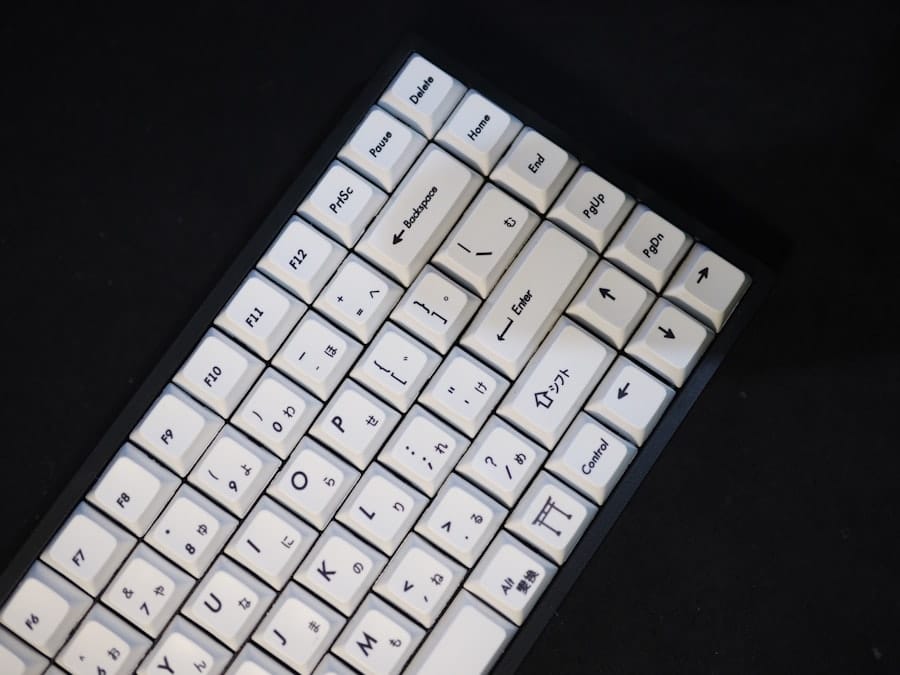
Chromium-based browsers, such as Google Chrome and Microsoft Edge, offer a variety of keyboard shortcuts designed to enhance user experience. For instance, pressing “Ctrl + T” opens a new tab, while “Ctrl + W” closes the current tab. These basic shortcuts are essential for efficient tab management, allowing users to navigate between multiple pages seamlessly. Additionally, “Ctrl + Shift + T” reopens the last closed tab, which can be particularly useful for recovering accidentally closed pages.
Beyond basic navigation, Chromium users can take advantage of shortcuts that facilitate browsing history management and bookmark access. For example, “Ctrl + H” opens the history page, while “Ctrl + D” allows users to bookmark the current page quickly. These shortcuts not only save time but also help users maintain organization within their browsing sessions. Furthermore, power users can utilize “Ctrl + L” or “F6” to focus on the address bar, enabling them to enter new URLs or search queries without needing to reach for the mouse.
Keyboard Shortcuts for Firefox Users
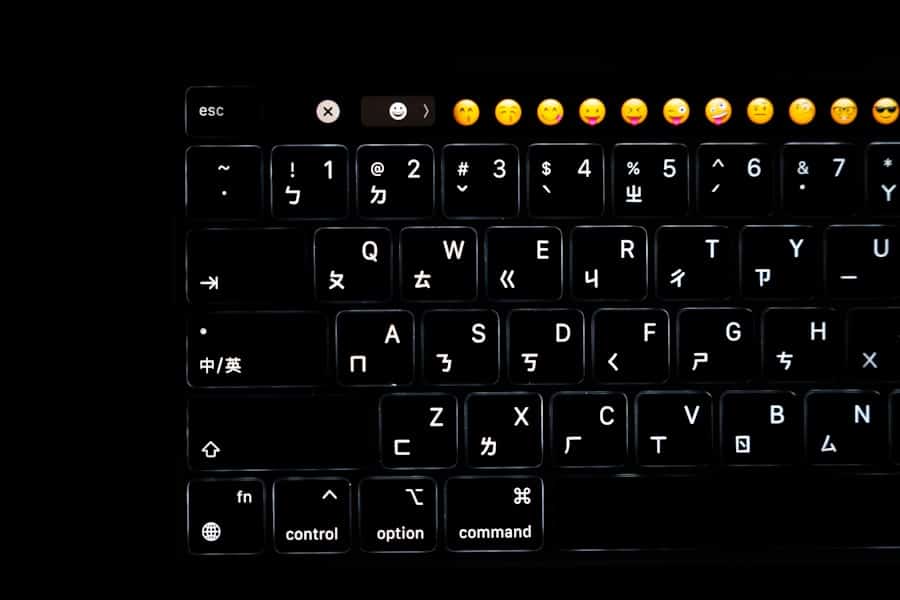
Firefox also provides a robust set of keyboard shortcuts that cater to power users seeking efficiency in their browsing experience. Similar to Chromium, Firefox allows users to open a new tab with “Ctrl + T” and close the current tab with “Ctrl + W.” However, Firefox offers unique shortcuts that enhance its functionality. For instance, “Ctrl + Shift + P” opens a new private browsing window, allowing users to surf the web without leaving traces in their history.
In addition to these basic commands, Firefox users can utilize shortcuts for managing bookmarks and accessing various features within the browser. The shortcut “Ctrl + B” opens the bookmarks sidebar, providing quick access to saved links. Users can also press “Ctrl + J” to view their downloads, streamlining the process of locating recently acquired files. These shortcuts contribute to a more organized browsing experience and empower users to navigate their online activities with greater ease.
Common Keyboard Shortcuts for Both Chromium and Firefox
| Shortcut Function | Chromium (Windows/Linux) | Firefox (Windows/Linux) | Chromium (Mac) | Firefox (Mac) |
|---|---|---|---|---|
| Open New Tab | Ctrl + T | Ctrl + T | Cmd + T | Cmd + T |
| Close Current Tab | Ctrl + W | Ctrl + W | Cmd + W | Cmd + W |
| Reopen Last Closed Tab | Ctrl + Shift + T | Ctrl + Shift + T | Cmd + Shift + T | Cmd + Shift + T |
| Switch to Next Tab | Ctrl + Tab or Ctrl + PgDn | Ctrl + Tab or Ctrl + PgDn | Cmd + Option + Right Arrow | Cmd + Option + Right Arrow |
| Switch to Previous Tab | Ctrl + Shift + Tab or Ctrl + PgUp | Ctrl + Shift + Tab or Ctrl + PgUp | Cmd + Option + Left Arrow | Cmd + Option + Left Arrow |
| Open Developer Tools | Ctrl + Shift + I | Ctrl + Shift + I | Cmd + Option + I | Cmd + Option + I |
| Open History | Ctrl + H | Ctrl + H | Cmd + Y | Cmd + Shift + H |
| Open Downloads | Ctrl + J | Ctrl + J | Cmd + Shift + J | Cmd + J |
| Bookmark Current Page | Ctrl + D | Ctrl + D | Cmd + D | Cmd + D |
| Open Bookmark Manager | Ctrl + Shift + O | Ctrl + Shift + B | Cmd + Option + B | Cmd + Shift + B |
| Open Find Bar | Ctrl + F | Ctrl + F | Cmd + F | Cmd + F |
| Open New Window | Ctrl + N | Ctrl + N | Cmd + N | Cmd + N |
| Open New Incognito/Private Window | Ctrl + Shift + N | Ctrl + Shift + P | Cmd + Shift + N | Cmd + Shift + P |
While Chromium and Firefox have distinct features and interfaces, many keyboard shortcuts are common across both platforms. This consistency allows users who switch between browsers to maintain familiarity with essential commands. For example, both browsers utilize “Ctrl + R” or “F5” to refresh the current page, ensuring that users can easily reload content regardless of their chosen browser.
Another shared shortcut is “Ctrl + Shift + N,” which opens a new incognito or private browsing window in both browsers. This feature is particularly valuable for users who wish to browse without saving their history or cookies. Additionally, “Ctrl + F” is universally used to open the find bar, enabling users to search for specific text within a webpage quickly. These common shortcuts not only enhance usability but also promote a smoother transition for users who may frequently switch between different browsers.
For those looking to enhance their browsing efficiency, exploring keyboard shortcuts can be a game changer, especially when comparing Chromium and Firefox. If you’re interested in further optimizing your online experience, you might find the article on ERP subscription management particularly insightful. It discusses how streamlined processes can significantly improve productivity, much like mastering keyboard shortcuts does for web navigation. You can read more about it here.
Advanced Keyboard Shortcuts for Power Users
For those who consider themselves power users, advanced keyboard shortcuts can unlock even greater efficiency in web browsing. These shortcuts often involve combinations that allow for more complex actions without relying on mouse navigation. For instance, in both Chromium and Firefox, pressing “Ctrl + 1” through “Ctrl + 8” allows users to switch directly to specific tabs based on their order in the tab bar. This feature is particularly useful for managing numerous open tabs and quickly accessing frequently visited sites.
Moreover, power users can benefit from shortcuts that facilitate developer tools access and other advanced features. In Chromium, pressing “F12” or “Ctrl + Shift + I” opens the Developer Tools panel, which is essential for web development and debugging tasks. Similarly, Firefox offers its own set of developer tools accessible through the same shortcut. Mastering these advanced shortcuts not only enhances productivity but also empowers users to engage more deeply with web technologies.
Customizing Keyboard Shortcuts in Chromium and Firefox
One of the advantages of modern web browsers is the ability to customize keyboard shortcuts according to individual preferences. Both Chromium and Firefox provide options for users to modify existing shortcuts or create new ones tailored to their specific workflows. In Chromium, users can access the settings menu and navigate to the Extensions section, where they can assign custom shortcuts for various extensions they have installed.
Firefox also offers customization options through its settings menu. Users can modify keyboard shortcuts for specific add-ons or extensions by accessing the Add-ons Manager and selecting the desired extension. This flexibility allows power users to create a personalized browsing experience that aligns with their unique habits and preferences. By customizing keyboard shortcuts, users can streamline their interactions with the browser and enhance overall efficiency.
Conclusion and Final Thoughts
In conclusion, understanding and utilizing keyboard shortcuts is essential for anyone looking to optimize their web browsing experience. Power users who master these shortcuts can significantly enhance their productivity and efficiency while navigating online content. Both Chromium and Firefox offer a wide array of shortcuts that cater to various tasks, from basic navigation to advanced features tailored for developers.
As technology continues to evolve, so too will the tools available for enhancing user experience in web browsers. By embracing keyboard shortcuts and exploring customization options, users can create a browsing environment that suits their individual needs. Ultimately, whether one is a casual user or a dedicated power user, leveraging these techniques can lead to a more effective and enjoyable online experience.
FAQs
What are keyboard shortcuts in web browsers?
Keyboard shortcuts are combinations of keys that perform specific functions within a web browser, allowing users to navigate, manage tabs, and execute commands more quickly without using a mouse.
Why are keyboard shortcuts important for power users?
Keyboard shortcuts enhance efficiency and productivity by enabling faster navigation and control of browser features, reducing reliance on the mouse, and streamlining repetitive tasks.
Do Chromium-based browsers and Firefox share the same keyboard shortcuts?
While many keyboard shortcuts are similar between Chromium-based browsers (like Google Chrome, Microsoft Edge) and Firefox, there are differences in some shortcuts due to variations in browser design and features.
Can keyboard shortcuts be customized in Chromium and Firefox browsers?
Firefox allows users to customize some keyboard shortcuts through extensions or built-in settings, whereas Chromium-based browsers have limited native customization options but support extensions that can modify shortcuts.
What are some common keyboard shortcuts shared by Chromium and Firefox?
Common shortcuts include Ctrl+T to open a new tab, Ctrl+W to close the current tab, Ctrl+Tab to switch to the next tab, Ctrl+Shift+T to reopen the last closed tab, and Ctrl+L to focus the address bar.
Are there any unique keyboard shortcuts exclusive to Firefox?
Yes, Firefox includes some unique shortcuts such as Ctrl+Shift+E to open the tab manager (in some versions) and Ctrl+Shift+M to toggle Responsive Design Mode for web development.
Are there any unique keyboard shortcuts exclusive to Chromium browsers?
Chromium browsers have unique shortcuts like Ctrl+Shift+B to toggle the bookmarks bar and Ctrl+Shift+J to open the Developer Tools console.
How can I learn all the keyboard shortcuts available in my browser?
Most browsers provide a help page or documentation listing all keyboard shortcuts. Additionally, users can find comprehensive lists on official browser support websites or through browser settings menus.
Do keyboard shortcuts work the same on all operating systems?
Keyboard shortcuts can vary between operating systems. For example, on macOS, the Command key (⌘) is often used instead of Ctrl, and some shortcuts may differ due to OS-specific conventions.
Can using keyboard shortcuts improve browser security?
While keyboard shortcuts primarily improve efficiency, some shortcuts can help quickly close suspicious tabs or open private browsing windows, indirectly contributing to safer browsing habits.